Easy Screen Recorder 2.1: Crash-Safe Recordings, Clean Multi-Monitor Capture, One Window
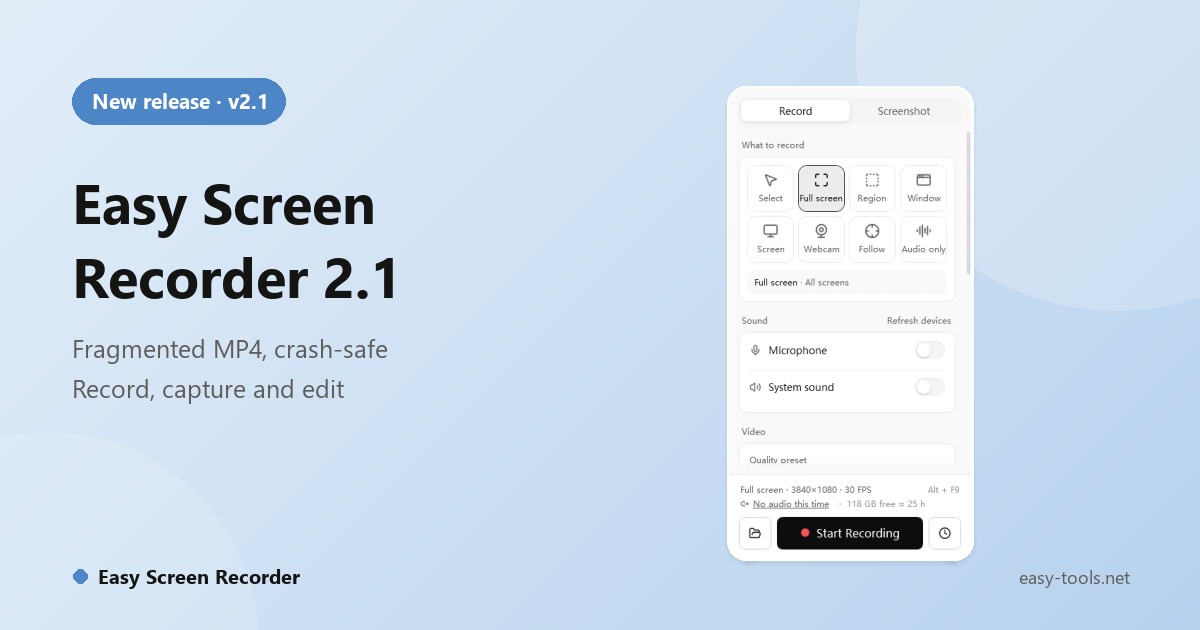
Recording your screen should not be stressful. You record for two hours, the computer freezes, and the file will not open. You finish a take and discover there was no sound. On a multi-monitor or high-DPI setup the selection lands in the wrong place and the picture looks soft. Each improvement in Easy Screen Recorder 2.1 targets one of these problems, and it brings recording, screenshots, annotation, browsing, trimming and conversion into one window.
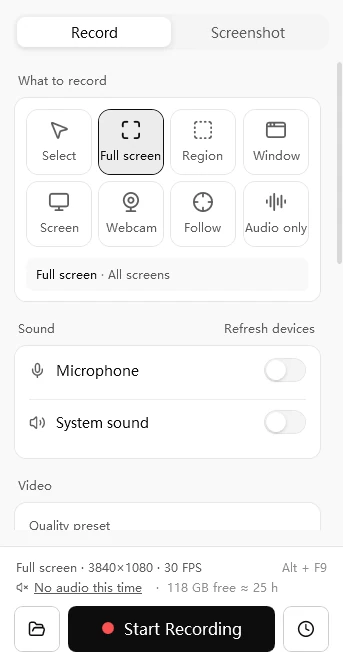
Two hours recorded and the file will not open?
A normal MP4 writes its index at the very end. If recording is cut short by a power loss or a crash, the file is unplayable. Easy Screen Recorder writes fragmented MP4 instead: about every two seconds a self-contained chunk is saved, so an interruption usually costs only the last few seconds. After a normal stop the recording is converted losslessly to a standard MP4.
If a previous recording did not end properly, the app tells you at the next start and marks those files in Recent so you can repair them in one click. How much survives depends on hardware, encoding settings and how the session was interrupted.
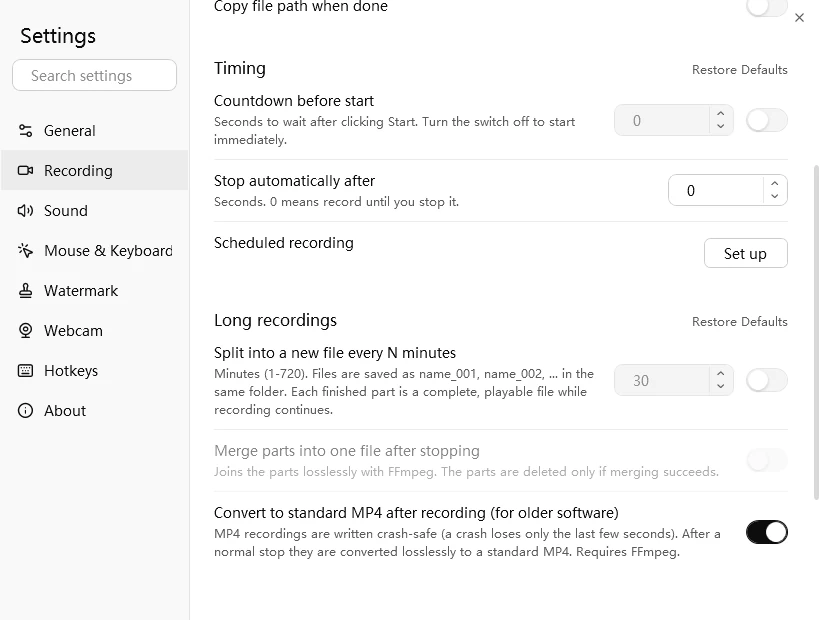
No sound? Find out before you start
The wrong microphone or system sound left off is usually discovered during playback. With 2.1 you can check levels live in the main window while idle, and the app warns you before recording if sound is off or a device is missing. System sound and microphone can be recorded together.
Multiple monitors, high DPI, vertical screens
Easy Screen Recorder is per-monitor DPI aware and measures everything in physical pixels, so selections do not drift and the picture does not blur. A rotated monitor is straightened before capture, and a resolution change mid-recording is handled automatically.
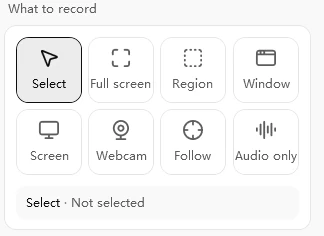
A screenshot should not take three programs
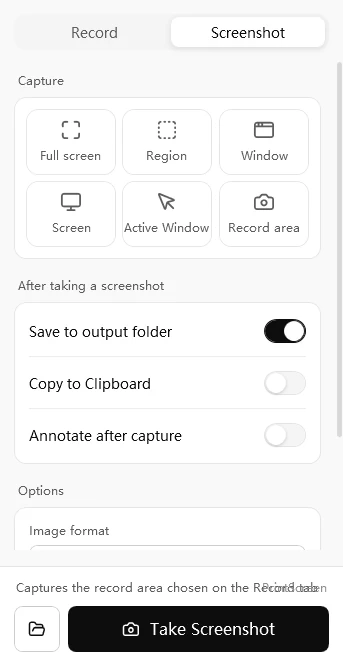
Use Ctrl + Shift + X to bring up the capture toolbar, or the Screenshot tab. You can capture full screen, a region, a window, one monitor or the active window, with an optional 3, 5 or 10 second delay. The toolbar is not captured in the image.
Afterwards, annotate with rectangle, ellipse, arrow, line, pen, highlighter, text, mosaic and numbered markers, pin the picture on top of the desktop, copy it or open its folder. A built-in viewer can adjust brightness, contrast and saturation.
Teaching, tutorials and long recordings
- Screen pen: write while you record with pen, chalk, marker, brush or highlighter. Default hotkey Ctrl + Shift + D; Esc leaves the pen.
- Mouse clicks and keystrokes: viewers can see where you clicked and which keys you pressed.
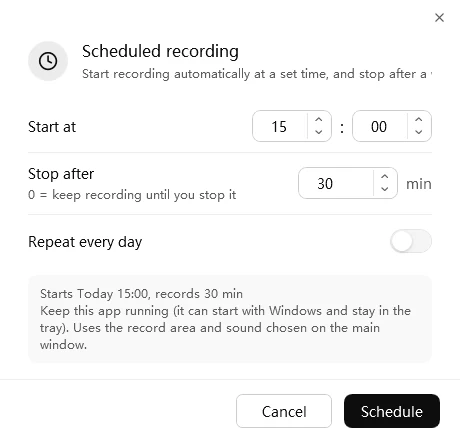
- Scheduled recording: start at a set time, stop after a set length, optionally repeat every day.
- Recent: browse your recordings and screenshots, filter by type, double-click to play or view.
- Built-in player and tools: trim the start and end, convert to GIF, compress, extract audio. FFmpeg is installed with the app.
Trial and registration
Easy Screen Recorder has a 15-day trial, and videos recorded during the trial carry no watermark. After the trial, new videos get an "Unregistered" watermark in the middle of the picture. Registering removes it and enables high-quality export. Without registration, recording quality is limited to Standard at 30 frames per second.
See the Easy Screen Recorder page for the full overview, or download the trial.