
Send every video on its way, light Web-friendly video compressor for Windows

Turn big videos into small MP4 files that start playing right away, in three steps. MOV, MKV and AVI all become standard MP4, you can set a "no larger than N MB" limit, and trimming, joining and watermarks are built in. Everything is processed on your own PC and nothing is uploaded.

Windows 10 and 11 (64-bit) · FFmpeg included

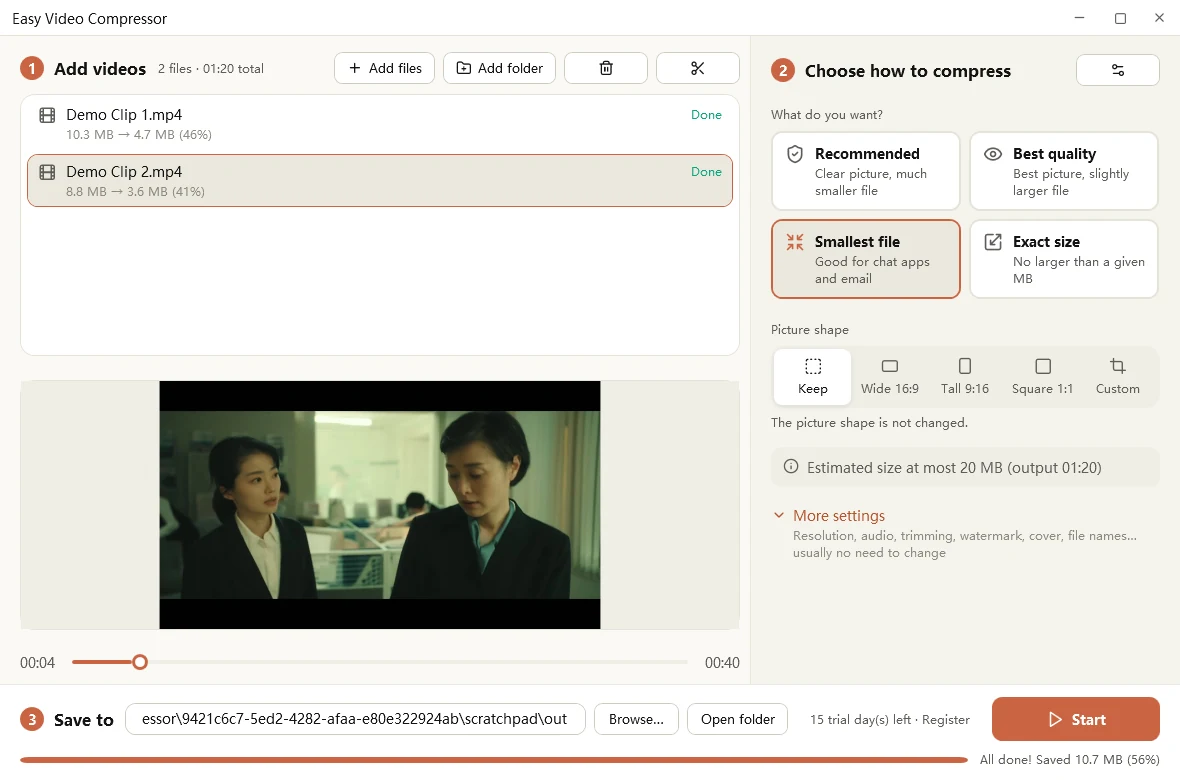
Easy Video Compressor after a run: each file shows its size before and after compression, and the bottom bar reports the total saved
Three steps: add videos, choose how to compress, save to a folder

About 1/10

The same picture can come out at roughly a tenth of the original size*

3 steps

Add videos, pick a result, press Start. No bitrates to learn

Trim and join

Cut out or keep several sections, and join videos in order

Command line

One plan file runs in bulk on Windows or a Linux server

* Test example: a 38-second 1920x1080 classroom recording went from 70.9 MB to about 6.2 MB. Results vary with the picture content and the preset you choose.

Ever been stuck with a big video?

Large videos should not be this much trouble

Easy Video Compressor does one thing and does it well: it turns videos of any common format into small, web-friendly MP4 files, quickly and reliably.

A course recording is several GB

Uploaded to your site, learners wait through a spinner for ten seconds or more, and bandwidth and storage costs stay high.

How Easy Video Compressor helps

Compresses to a small, web-friendly MP4 with the index at the front, so it starts playing as soon as it opens.

MOV, MKV and AVI will not play on the web

Phone clips, meeting recordings and files from older devices often fail to play in a browser.

How Easy Video Compressor helps

Reads all the common formats and always outputs standard H.264 + AAC MP4 that browsers and phones play.

20 MB over the limit

Chat apps and email have size limits, and an afternoon goes on guessing bitrates and re-compressing.

How Easy Video Compressor helps

Enter "no larger than N MB" and the app computes the bitrate and fits the file in with a two-pass encode.

Trimming means another app

You want to cut an intro or outro or join a few clips, but that means installing an editor.

How Easy Video Compressor helps

Trim & join is built in: cut out or keep sections on the timeline, and join several videos in order.

Hundreds of videos, one click at a time

A course or footage library needs regular transcoding, and an afternoon disappears into repetitive clicks.

How Easy Video Compressor helps

Save your settings as a plan file and run the evc-video command line on the whole library, unattended.

Worried about uploading your videos

Online compressors send your video to someone else's server, with no guarantee for privacy or copyright.

How Easy Video Compressor helps

Everything is processed on your own PC. Nothing is uploaded and no third-party server is involved.

Three steps, that is all

No bitrates to learn, no parameters to study

The numbered sections of the window are the whole workflow: add videos, choose how to compress, then save.

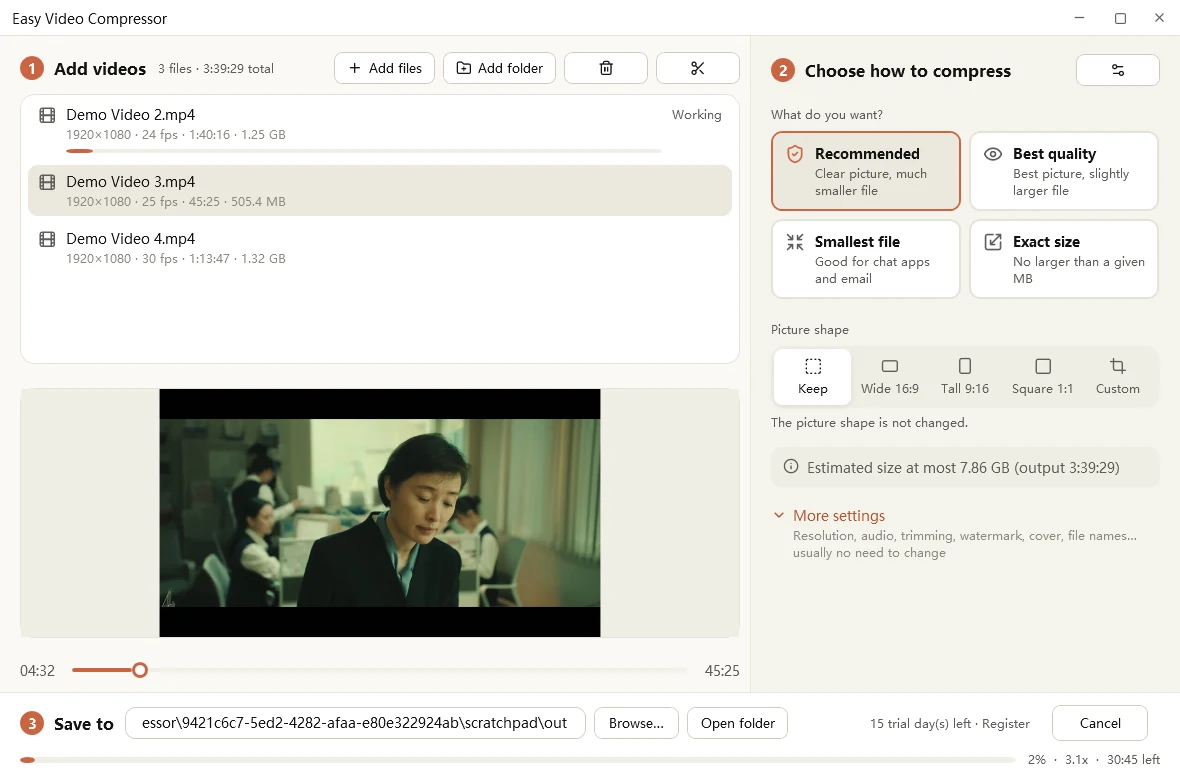
Easy Video Compressor while working: the file list shows each video's status, and the bottom bar shows percent done, speed and time left
Progress, speed and time left are always visible, and you can cancel at any time
  1. 1

    Add videos

    Drag in files or a whole folder. MP4, MOV, MKV, AVI, WMV, FLV, WebM, TS, GIF and other common formats are accepted.

  2. 2

    Choose how to compress

    Recommended gives a clear picture and a much smaller file. Best quality keeps the best picture. Smallest file suits chat apps and email. Exact size fits a file under the number of MB you enter.

  3. 3

    Press Start

    Progress, time left and each file's status are on screen, and when it finishes you can open the output folder directly.

Why the output works so well on the web

Not just smaller, but shaped the way browsers like

Plenty of videos play fine on a computer but turn slow, choppy or unplayable on a web page. The problem is often not the size but how the file is packaged.

H.264 High + yuv420p + AAC

The most widely compatible combination, playable in nearly every browser and phone.

Index at the front (faststart)

Playback can begin before the whole file has downloaded.

Regular keyframes

Seeking responds quickly, with no dragging the slider and waiting.

Re-wrap instead of re-encode

A video that already qualifies only gets a new container, which is fast and loses no quality.

Re-encode only when needed

The app decides for you, so time is not wasted and quality is not lost for nothing. A hardware encoder is used when available, with an automatic fallback when not.

Automatic fallback, cancel any time

Cancelling in the middle cleans up temporary files and leaves nothing behind.

Features

Small, accurate, and the rest of the job done too

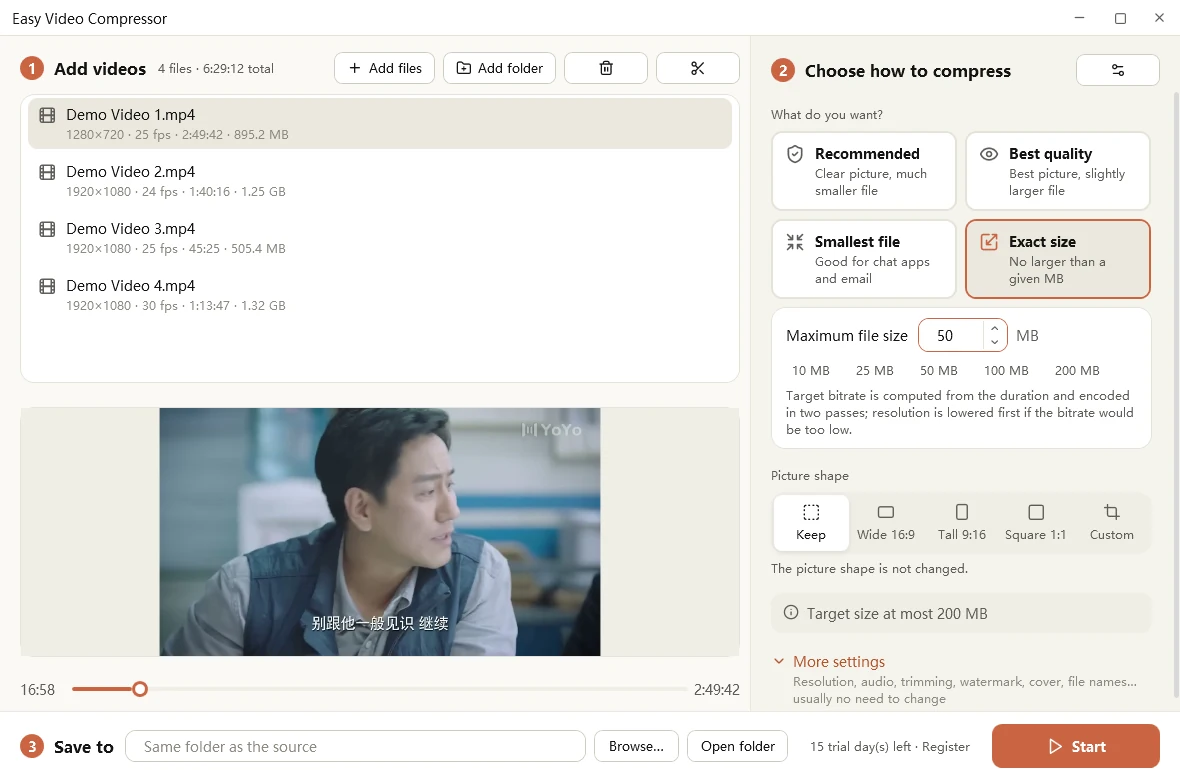
Easy Video Compressor Exact size: Maximum file size in MB with 10, 25, 50, 100 and 200 MB shortcuts, and the estimated size shown below
Exact size: enter a limit in MB and see the estimate right away

Quality and size

Pick a preset at a glance, and decide how big the file may be

  • Presets·Recommended, Best quality and Smallest file cover most situations
  • Exact size·enter any number, such as 10, 25, 50, 100 or 200 MB; the app computes the target bitrate and uses a two-pass encode to fit the file within the limit
  • Estimate·the expected size is shown below before you start
  • More settings·maximum resolution (shrinks only, never enlarges), maximum frame rate, encoder, audio bitrate and loudness normalizing, which you rarely need to change
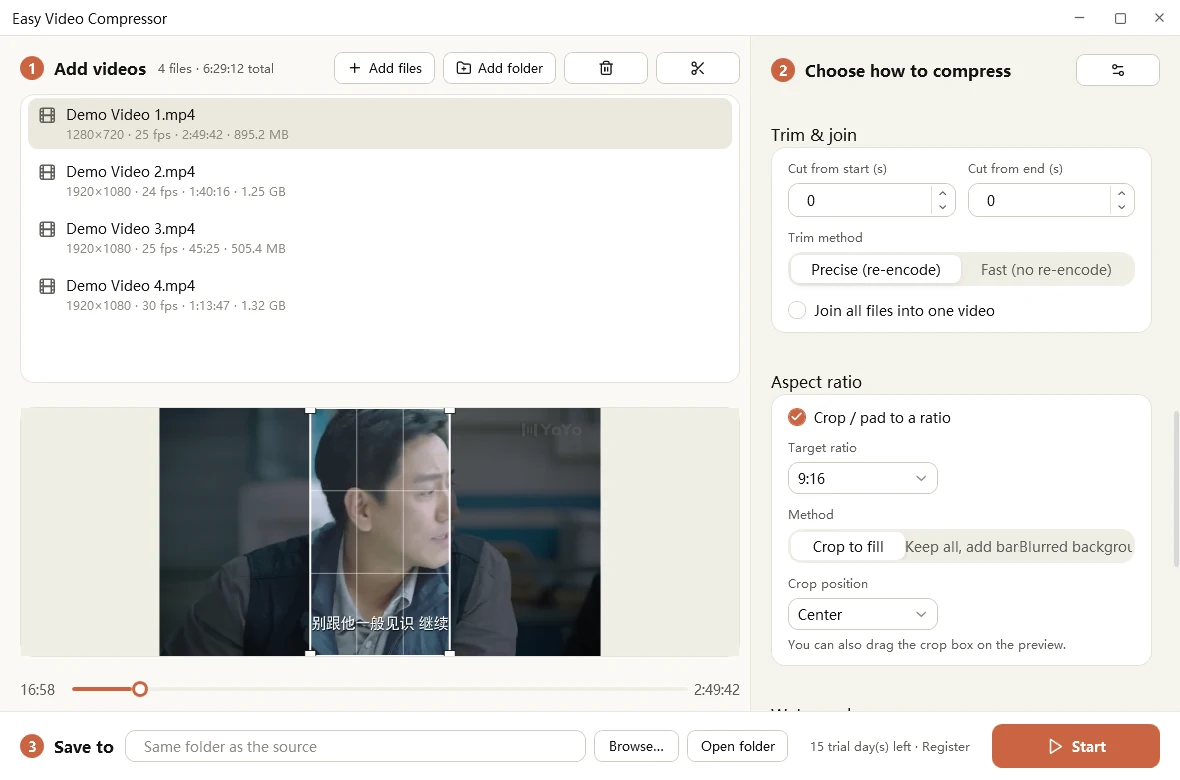
Easy Video Compressor Aspect ratio settings: target ratio 9:16 with Crop to fill, Keep all add bars, or Blurred background, and a crop box on the preview
Wide to tall: drag the crop box right on the preview

Picture shape

Wide, tall or square, your choice

  • Presets·keep as is, wide 16:9, tall 9:16, square 1:1, or custom
  • Custom size·type the width and height in pixels
  • Method·crop to fill, keep everything and add bars, or a blurred background, so a wide video can go tall without losing content
  • What you see·drag the crop box on the preview to keep exactly the part you want

Useful for short videos, course covers and social posts, with one set of settings you can switch any time.

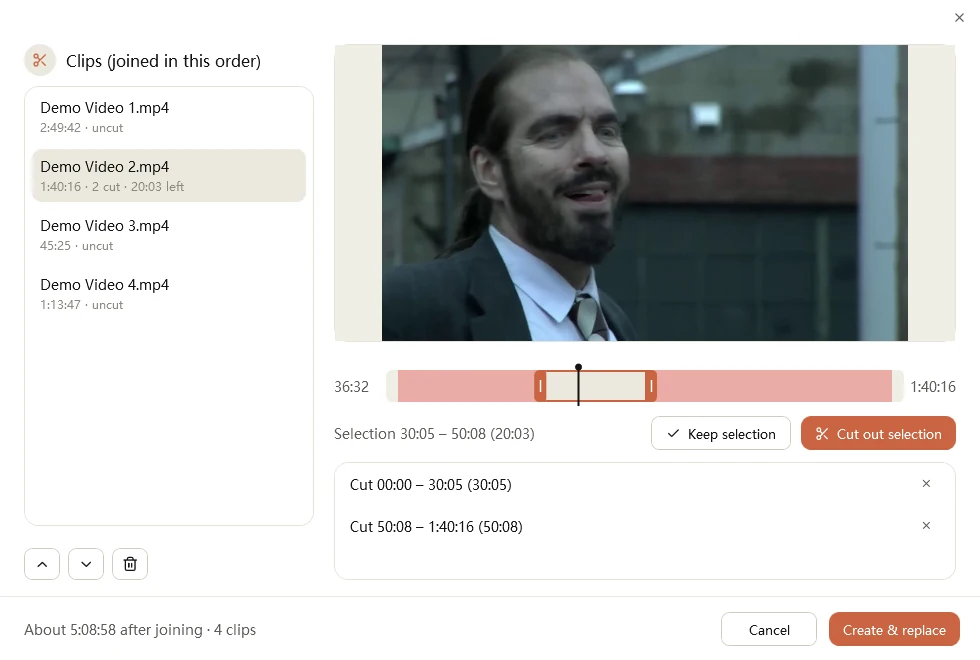
Easy Video Compressor Trim and join window: clip list on the left and a timeline with the cut sections in red, plus Keep selection and Cut out selection
Trim & join: cut sections show in red on the timeline and can be restored

Trim and join

No separate editor needed

  • Cut or keep·drag on the timeline, then either cut out the selection or keep only the selection
  • Several cuts, several files·cut more than one section in a video, and join several videos in order, moving them up or down
  • Restore any time·cut sections are marked red on the timeline and can be restored with one click
  • Replaces in place·the new video replaces the old one in the list, ready to compress. In More settings you can also trim the start and end by seconds, precisely or fast without re-encoding

An ad at the start, a black screen at the end, a slip in the middle, clips from different cameras: tidy them up in minutes.

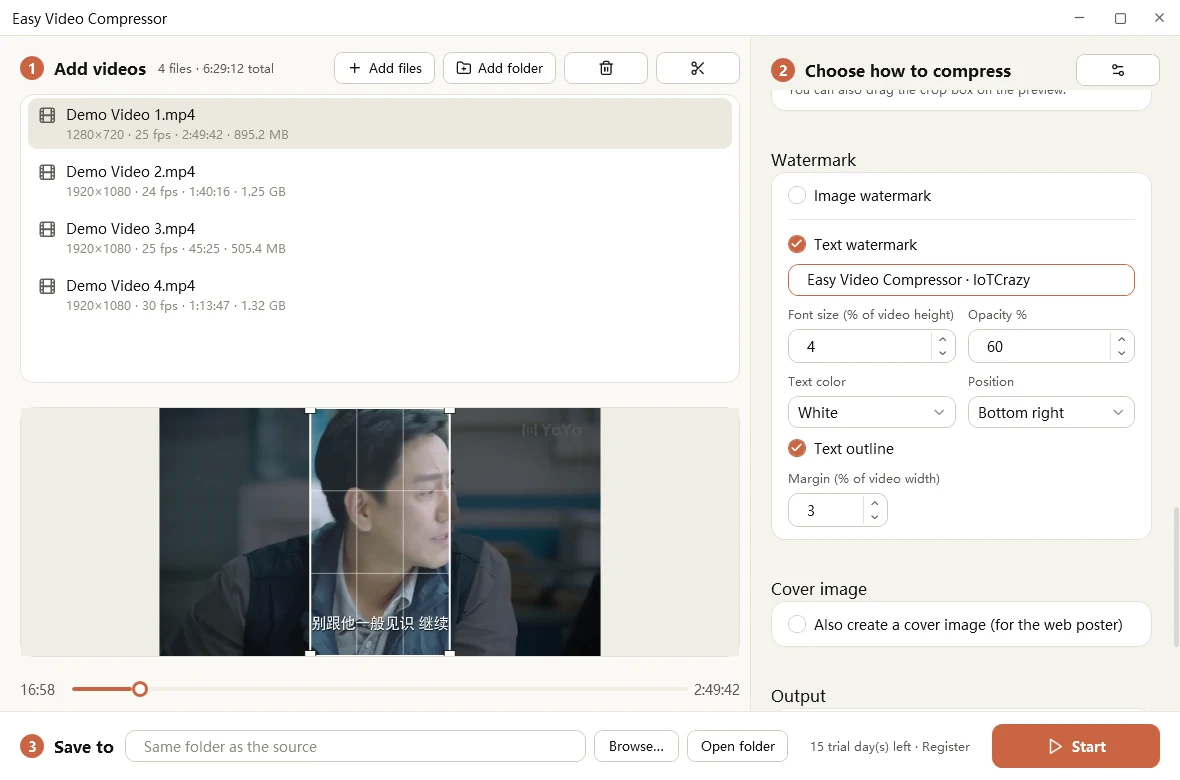
Easy Video Compressor Watermark settings: text watermark with font size, opacity, color, position and margin, and the option to also create a cover image
Text watermark: font size, opacity, color, position and margin are all adjustable

Watermark and cover

Brand your videos in the same run

  • Image or text watermark·position, size, opacity and margin can all be adjusted
  • Cover image·grabbed automatically or at a time you choose, so you get a poster for your web page too
  • All at once·compress, crop, trim, watermark and cover in a single run

Plans and command line

Set it up once, reuse it, and let the machine do the repeating

Save your settings as a plan file (.evcv), then hand the same plan to the evc-video command-line tool to process videos in bulk on Windows or a Linux server.

Command line · three arguments

# compress a whole video library overnight
evc-video plan.evcv source-folder output-folder

Transcoding after upload, scheduled jobs, unattended runs: all possible.

  • Import and export·save tuned settings as a .evcv file and import it with one click next time
  • Encrypted·plan files are saved encrypted, so your settings stay private
  • One standard·share the same plan with colleagues so output specs stay consistent
  • Server batches·run evc-video in bulk on Windows or Linux

Plan files are exported from the app. The command-line tool does not check registration, and it accepts only plan files exported by the app.

Compared with what you use now

An honest comparison by category, not by brand

Online compressors General transcoders Easy Video Compressor
Big files and batches Slow uploads, often size and count limits Can do it, but many parameters Local processing, no upload, batches are no problem
Privacy Your video goes to someone else's server Local Entirely local
Ease of use Simple You need to know bitrates and containers Choose one of four results, three steps
Web playback optimization Not always You set it up yourself Web-friendly format by default
Limit the file size A few support it You calculate the bitrate by hand Enter the MB, two-pass encode is automatic
Trim, join, watermark, cover Usually none Some, scattered All in one app
Server batches Not supported You write scripts The same plan runs from the command line

Use cases

Who uses it, and for what

Online education and training

Course recordings and live replays uploaded to a website open faster for learners, and bandwidth and storage costs drop.

Marketing and brand teams

Promo videos on your site and product pages load faster, and a watermark keeps the branding consistent.

E-commerce and creators

Switch product and short videos between wide and tall in one click, and keep the file size within what a platform asks for.

Admin and events

Fit meeting and event recordings under email and chat size limits, so they are never "just a bit too big".

Photographers and everyday users

Free up disk space from big phone, camera and action-cam files, and share them more easily.

IT and operations

Regular transcoding of a video library and server-side batches: one plan and one command, unattended.

Specifications

Output format MP4 (H.264 High + yuv420p + AAC), index at the front
Input formats MP4, MOV, MKV, AVI, WMV, FLV, WebM, TS, GIF and more
Quality Recommended, Best quality, Smallest file, or an exact limit in MB (two-pass encode)
Picture shape Keep, 16:9, 9:16, 1:1 or custom width x height; crop, pad or blurred background
Trim and join Cut out or keep several sections, and join several files in order
Watermark and cover Image or text watermark, cover image (poster)
Plans and command line .evcv plan files (encrypted); evc-video runs on Windows and Linux
System requirements 64-bit Windows 10 / 11, .NET Framework 4.6.2 or later

FFmpeg is included with the software, and its license ships with the installer in the licenses folder of the install directory.

Trial and registration

Try it free for 15 days, then register if it fits

Every feature works during the trial. When the trial ends, you need to register to keep processing videos.

During the trial

  • Every feature works for 15 days
  • The bottom of the window shows the trial days left, and one click opens registration

Registered

  • Buy once, use it long term
  • Keep processing videos after the trial

How to register

  1. Click the trial days left link at the bottom of the window to open the registration window
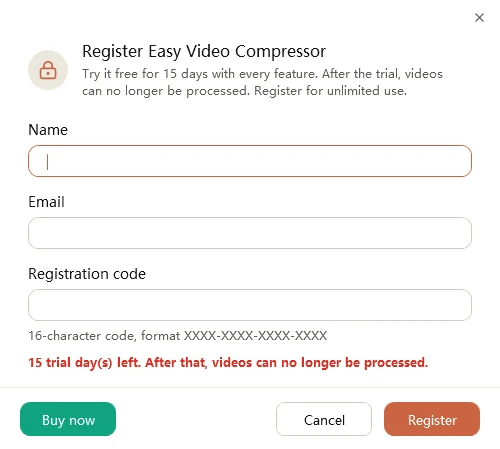
  2. Enter your name, email and the 16-character registration code (format XXXX-XXXX-XXXX-XXXX)
  3. Click Register. The app needs an internet connection once to activate.
Easy Video Compressor registration window with Name, Email and Registration code, the trial days left and a Buy now button
Registration window: enter your name, email and registration code

Buy a license

Try the full program first (15-day free trial), then choose a license. Your license key is e-mailed to you after checkout. Prices are in US dollars.

Most popular

Personal License

$ 59 .99

One payment, no expiry, all future updates included.

Private, non-commercial use at home. One license per computer.

  • Every feature, no watermark
  • Updates included
  • License key e-mailed after checkout
Buy Personal

Commercial License

$ 119 .99

One payment, no expiry, all future updates included.

Use in a company or any other business. One license per computer.

  • Every feature, no watermark
  • Updates included
  • License key e-mailed after checkout
Buy Commercial

Education License

$ 29 .99

One payment, no expiry, all future updates included.

Students, teachers and schools. One license per computer.

  • Every feature, no watermark
  • Updates included
  • License key e-mailed after checkout
Buy Education
  • Secure checkout with PayPal
  • 30-day money-back guarantee
  • One license per computer

Several licenses, a school or a non-profit? Ask us for a quote. Already bought? See the activation guide or look up your license key. By buying you agree to the store's terms.

Easy Video Compressor

Download

The latest version of Easy Video Compressor is v1.1 for Windows. It is free to download and includes a 15-day trial with every feature.

Requires Windows 10 and 11 (64-bit) · .NET Framework 4.6.2 or later · FFmpeg is included

FAQ

Quality, size and the trial

Will compressing make the quality noticeably worse?

With the Recommended preset most videos look the same to the eye. If picture quality matters most, choose Best quality. A video that already meets web requirements is only re-wrapped, not re-encoded, so its quality does not change.

My videos are MOV, MKV or AVI. Will that work?

Yes. MP4, MOV, MKV, AVI, WMV, FLV, WebM, TS, GIF and other common formats are supported, and the output is always a web-friendly MP4 (H.264 + AAC).

Can it hit an exact file size?

With Exact size, the app computes a target bitrate from the duration and encodes in two passes to fit within your limit, lowering the resolution first if the bitrate would otherwise be too low. A video that is already smaller than the limit is not enlarged.

Are my videos uploaded anywhere?

No. Everything is processed on your own computer, and nothing is sent to any third-party server.

Can I process many files at once?

Yes. Drag in a whole folder, or save your settings as a plan file and run the evc-video command-line tool on a Windows or Linux server to process videos in bulk.

Can I cut out a section from the middle, or keep only a few parts?

Yes. In the Trim & join window you can either cut out the selected section or keep only the selected section. A single video can have several cuts, and several videos can be joined into one in the order you choose.

Why do the compressed videos work so well on web pages?

The output uses the most widely compatible combination, H.264 High + yuv420p + AAC, with the index moved to the front (faststart) and regular keyframes. Playback can start before the whole file has downloaded, and seeking is quick.

Do I need to install FFmpeg separately?

No. FFmpeg is included in the installer, so there is nothing else to download or configure.

What are the limits of the trial?

The trial lasts 15 days with every feature available. After it ends, you need to register to keep processing videos.

Which systems are supported?

It runs on 64-bit Windows 10 and 11 and needs .NET Framework 4.6.2 or later. The evc-video command-line tool can also run in bulk on Linux servers.

Need help? Get in touch

If something does not work, or you have a suggestion, send us a message or an email.