One canvas, every platform
Photo collage software, no design skills needed
Add photos, pick a layout, save, and turn a folder of pictures into one image worth sharing in seconds. Collage, grid and long-image stitching, with smart layout and smart crop making the decisions and a draw-your-own-layout tool when presets are not enough. Everything is processed on your PC, so your photos are never uploaded.
Windows 10 or later (32-bit and 64-bit) · Windows installers, 64-bit and 32-bit
Three steps: add photos, pick a layout, save the image
Collage · Grid · Stitch
Smart layout and crop
Draw your own layout
Processed on your PC
3 steps
Add photos, pick a layout, save. Everything else is optional polish
3 merge modes
Collage, grid and long-image stitching cover the common cases
Draw layouts
Split the canvas any way you like and save it as a template
100% local
Merging, cropping and exporting all happen on your PC
Merging photos is a small job that eats time
A tidy, good-looking image should not take half an hour
General design tools are heavy, web collage makers want your private photos uploaded, and phone apps are cramped when you are working with a folder on your PC. Picture Merge Genius does this one job.
An online listing needs a clean grid of product shots
Photos of different shapes leave ragged gaps or get squashed.
How Picture Merge Genius handles it
Grid mode makes every cell the same size. In collage layouts portrait photos go into tall cells and landscape photos into wide ones.
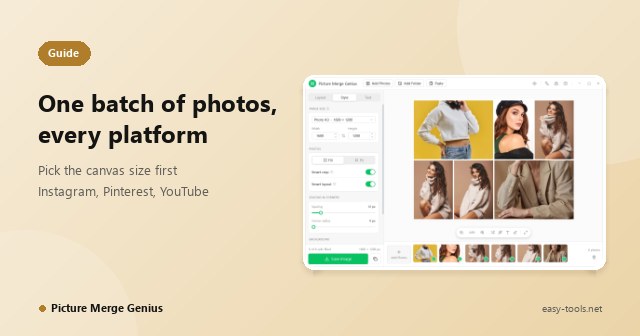
One set of photos for several platforms
Instagram, Stories, Pinterest, YouTube: each one means re-cropping and re-sizing.
How Picture Merge Genius handles it
Pick the platform canvas size first, then merge. One pass, the right size.
Templates, dragging, and then the face is cropped out
You drag photos into cells one by one and discover the subject was sliced in half.
How Picture Merge Genius handles it
Smart layout and smart crop place the photos for you, and keep the most detailed part of a picture in view when a crop is unavoidable.
Long screenshots, chat threads or receipts in one image
Manual cut and paste leaves visible seams and misalignment.
How Picture Merge Genius handles it
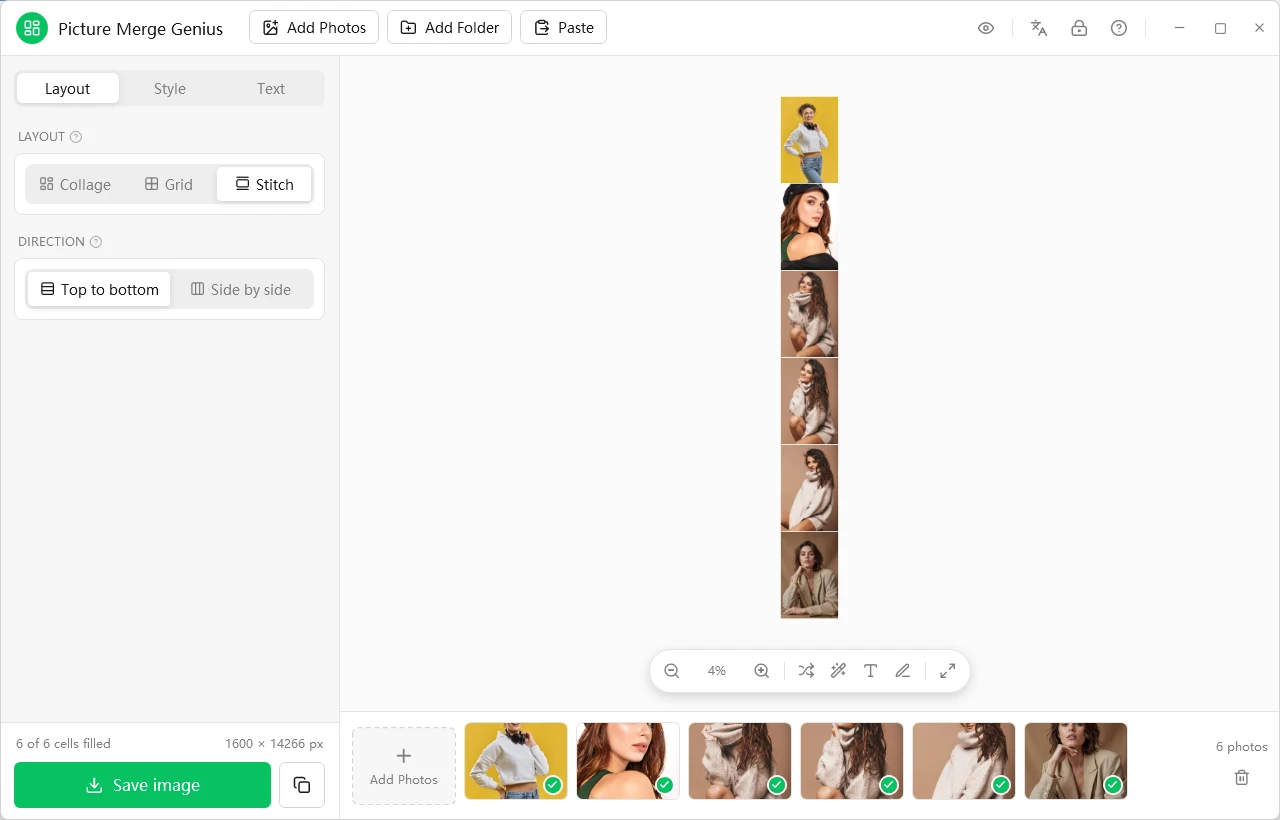
Stitch mode joins whole photos end to end, horizontally or vertically, without cropping anything.
Online tools want an upload, pro tools want a learning curve
Client work, unreleased products and family photos should not go to someone else's server.
How Picture Merge Genius handles it
Everything runs on your PC and nothing is uploaded. Open it and start; there is nothing to learn first.
Three steps, that is all
Add photos, pick a layout, save
Drag photos, or whole folders, onto the window and they fill the layout instantly. Everything else is optional polish.
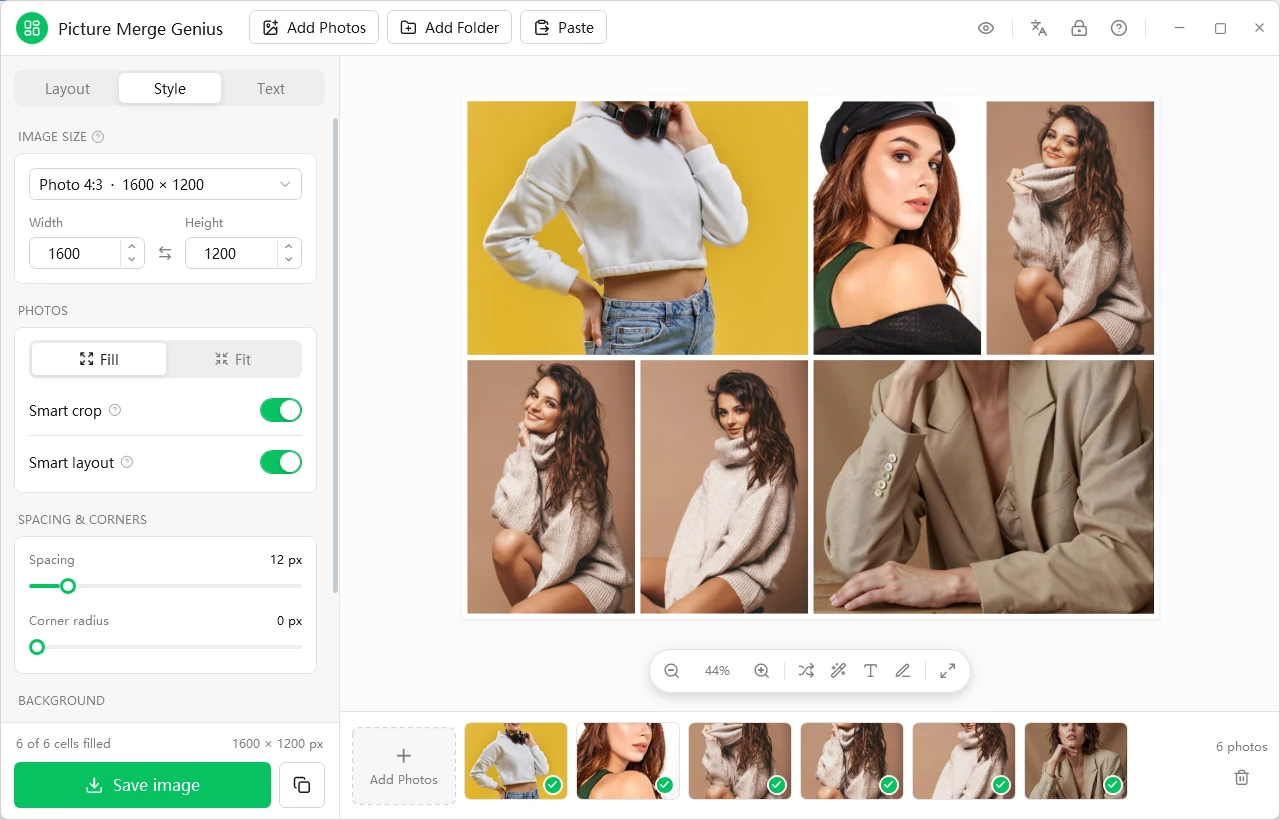
Style tab: image size, Fill or Fit, spacing and corner radius
1
Add photos
Click Add Photos or Add Folder, drag photos and folders onto the window, or paste an image from the clipboard.
2
Pick a layout
Choose Collage, Grid or Stitch. Templates are grouped by photo count, so click a thumbnail to apply it.
3
Save the image
Click Save image at the bottom left to choose a format and location, or use the Copy button and paste into a chat, email or document.
Three ways to merge
Covers the layouts you will actually need
Collage
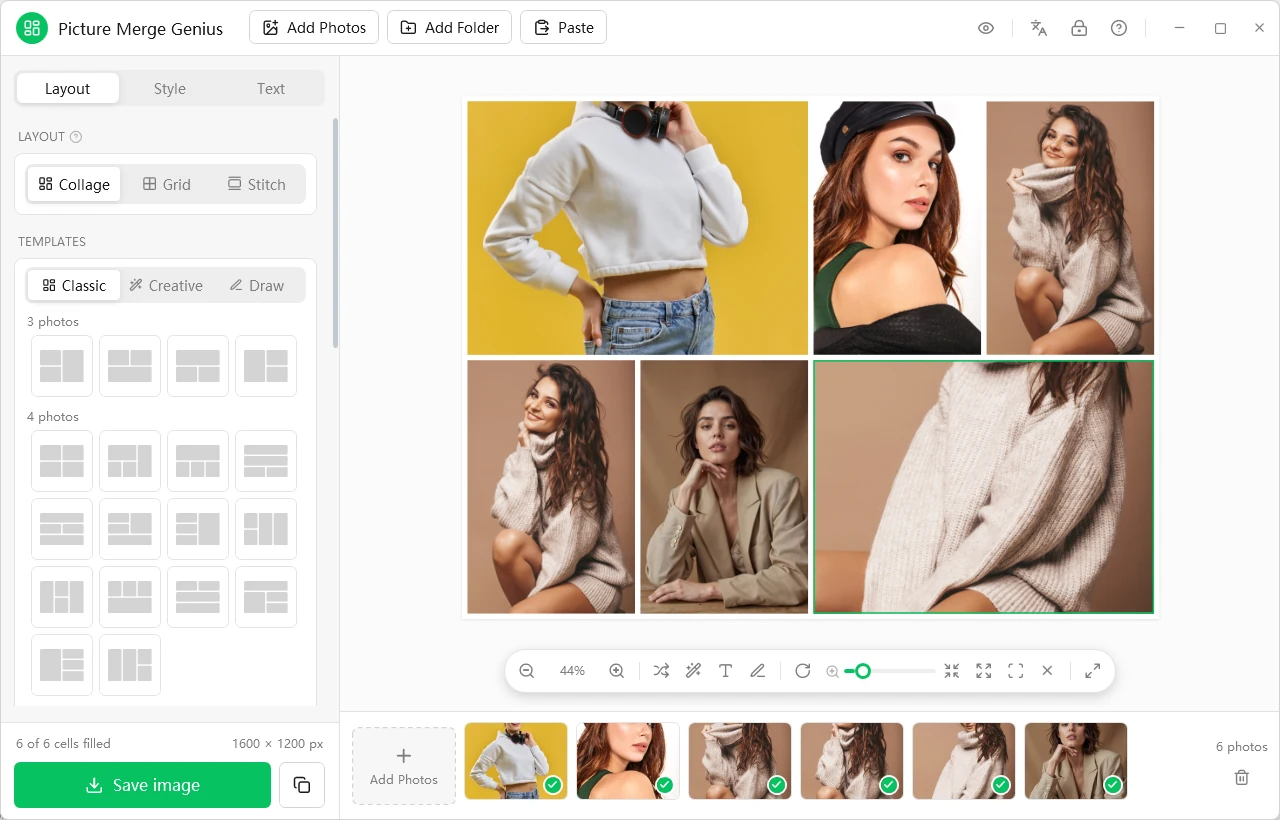
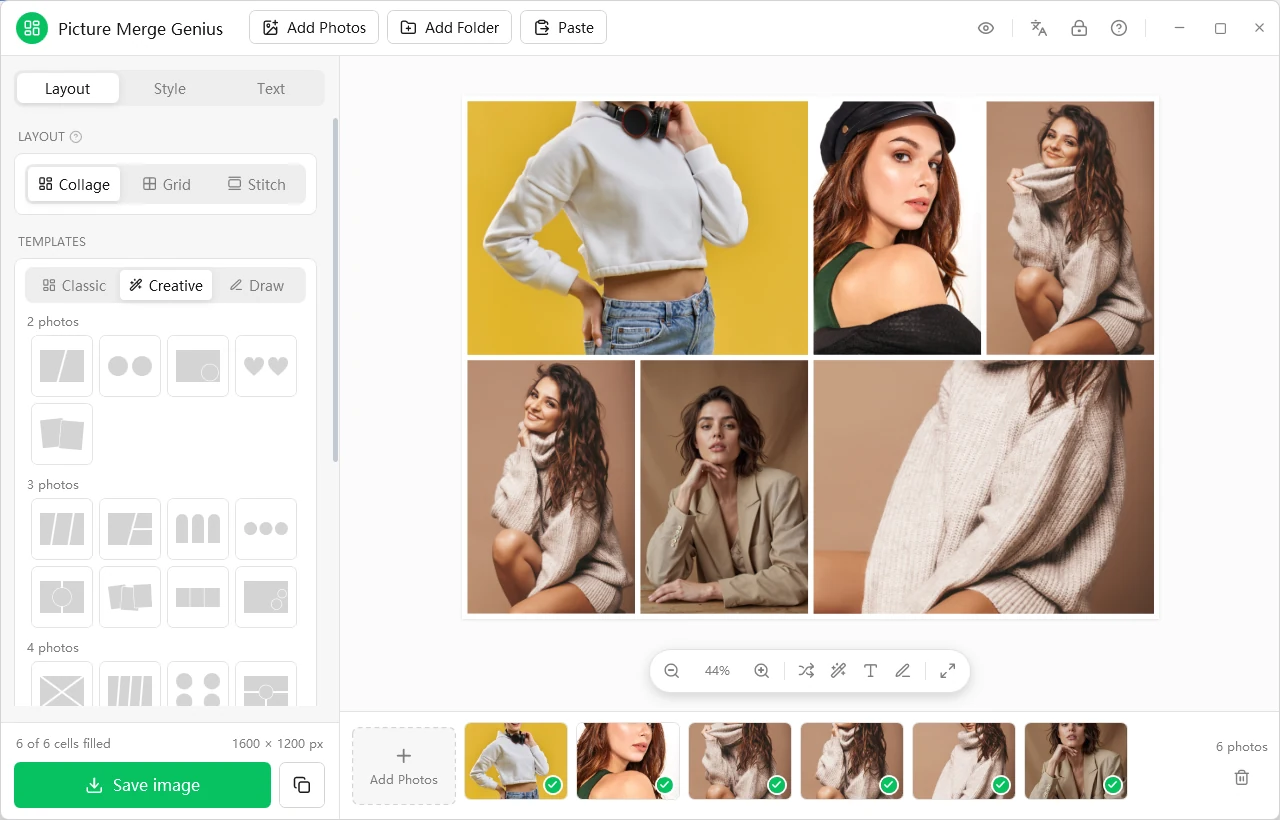
Dozens of built-in layouts. Classic gives tidy rectangles; Creative adds slanted splits, circles, hearts, hexagons, stars, polaroid cards and film strips. Drag inside a cell to reframe a photo, or drag one photo onto another to swap them.
Creative layouts: circles, hearts, polaroids, film strips
Grid
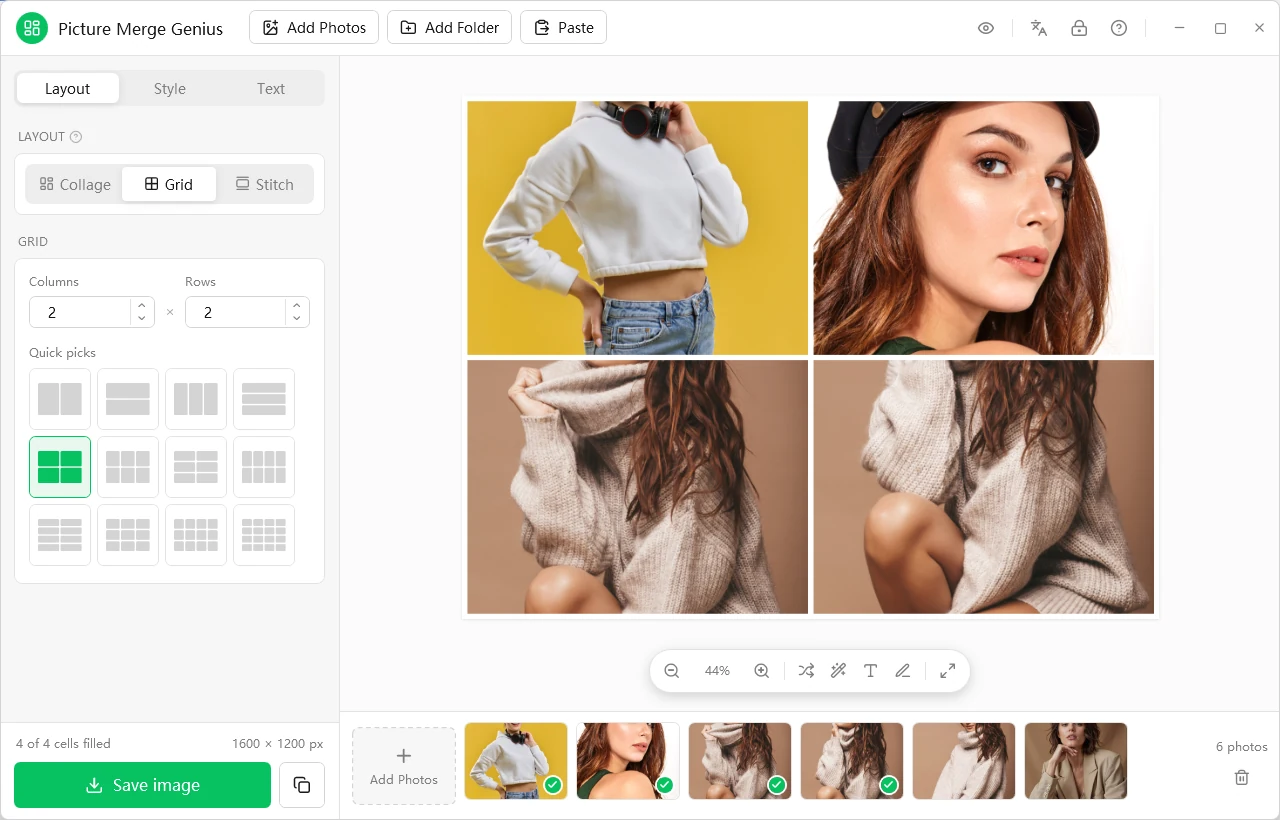
Equal cells in neat rows and columns. Set the number of columns and rows, or click a quick pick. A good fit for product catalogs and uniform galleries.
Grid: set columns and rows, or click a quick pick
Stitch
Joins whole photos end to end, horizontally or vertically, without cropping anything. Built for long screenshots, chat threads, receipts and panoramas.
Stitch: top to bottom or side by side, no cropping
Features
The fiddly work done for you, and room to do it your way
6 of 6 cells filled, output 1600 × 1200 px
Smart features
Three time-consuming decisions, made for you
Smart layout·add photos to an empty canvas and the app picks a layout that fits them all, sending portrait photos to tall cells and landscape photos to wide ones
Smart arrange·chooses the layout that suits your set best and places each photo where it needs the least cropping
Smart crop·when a photo must be cropped, it keeps the most important part, usually the subject, in view instead of always cutting around the center
Quick adjustments·drag inside a cell to reframe, drag one photo onto another to swap, shuffle the order with one click
The core layout algorithms run in a native, compiled module, so arranging a full set of photos stays instant.
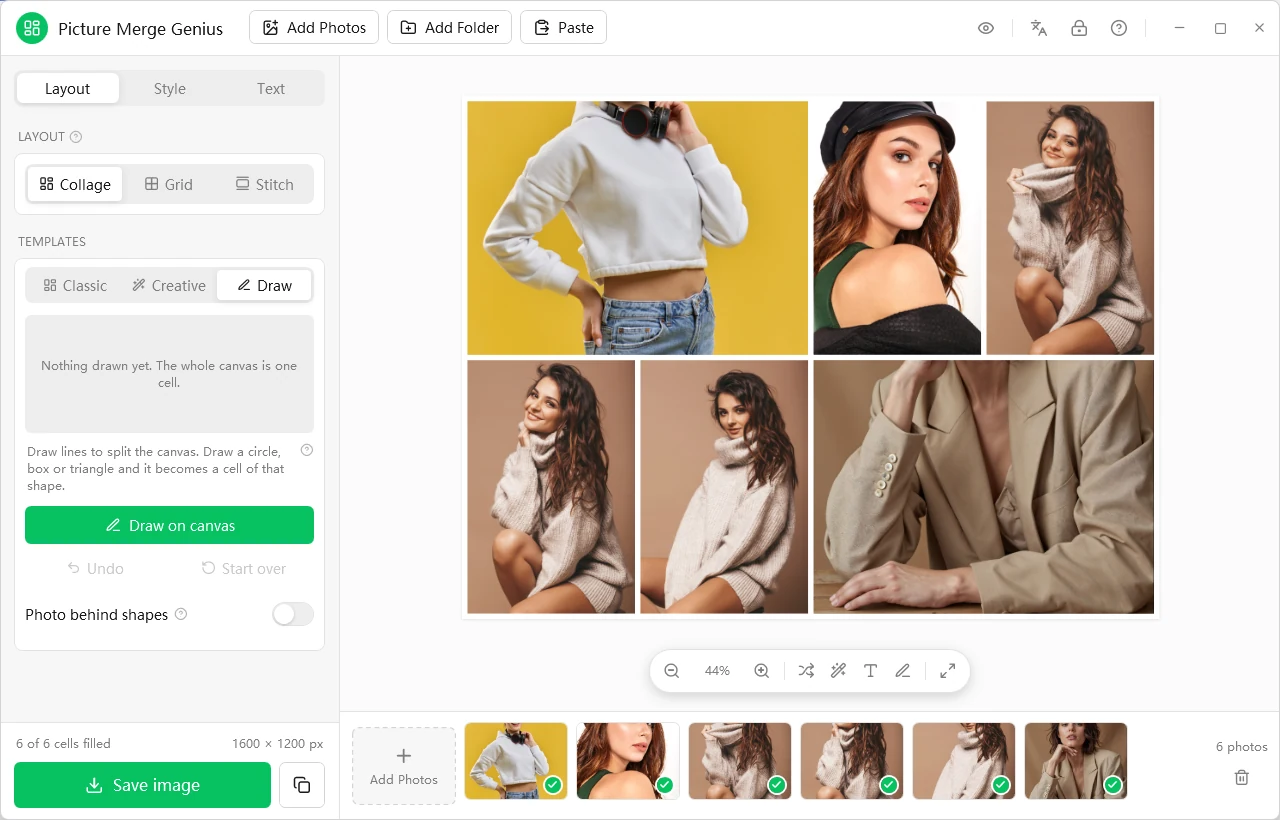
Draw layout: click Draw on canvas and split the canvas any way you like
Draw your own layout
Presets not enough? Draw it
Draw lines·split the canvas into cells however you like
Draw shapes·sketch a circle, box or triangle and it becomes a cell of that shape
Tidied automatically·your strokes are cleaned up into neat lines and shapes, and Undo or Start over fixes mistakes
Save as a template·finished designs can be saved and reused, so a brand's signature layout is made once and used forever
Turn on Photo behind shapes to place a backdrop photo behind the cut-out cells.
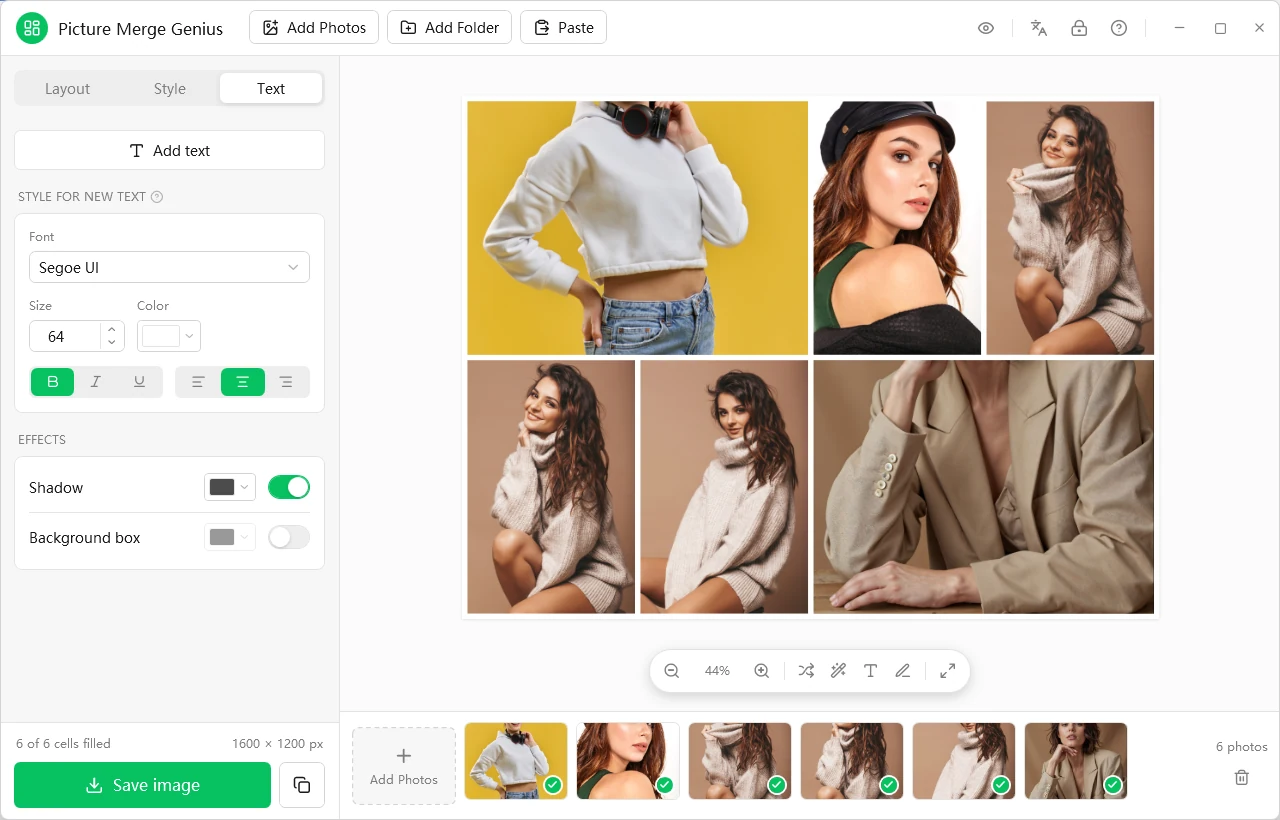
Text tab: font, size, color, alignment, shadow and background box
Make it yours
Add your title, caption and style
Text·font, bold, italic and underline, color, background, alignment and opacity, for captions, titles and memes
Look and feel·spacing between photos, rounded corners, shadows, background color, and zoom or rotation inside each cell
Fill or Fit·Fill crops each photo to cover its cell, Fit shows the whole photo inside it
One-click helpers·shuffle photos, swap the canvas orientation, fit the whole image to the window
Built for every platform
Start from the size you actually need
One set of photos, many destinations, without re-cropping from scratch each time.
Social media
Instagram post 1:1 and portrait 4:5 · Story and Reels 9:16
Facebook cover and post · X (Twitter) post 16:9 and header 3:1
YouTube thumbnail · Pinterest pin 2:3 · LinkedIn post
General
Square 1:1
A4 page
Wallpaper 2K
Custom size: type an exact width and height in pixels
Platform names are used only to describe which canvas sizes fit where. Trademarks belong to their respective owners.
Privacy by design
Most online collage tools upload your photos. This one does not
100% offline processing
Merging, cropping and exporting all happen on your computer.
Nothing is uploaded
There is no photo account and no cloud library, so there is nothing to leak.
Fine for sensitive material
Client work, unreleased products, family photos, internal screenshots. For businesses with confidentiality rules, "the photos never leave the machine" is often the deciding point.
Files it opens
JPG, PNG, BMP, GIF, TIFF, WebP and HEIC, with each photo's orientation respected automatically.
Formats it saves
JPG, PNG (with a transparent background), BMP, TIFF or GIF, or copy straight to the clipboard and paste into a chat, email or document.
How it compares to what you use now
By category, not by brand
Web collage makers
Full design suites
Picture Merge Genius
Photos stay on your PC
Usually uploaded
Yes
Yes
Time to first result
Minutes (upload, sign-up)
Minutes to hours
Seconds
Skill required
Low
High
None
Auto layout, placement and crop
Rarely
Manual
Yes
No-crop long-image stitching
Rare
Manual
Yes
Social canvas presets
Varies
Varies
Yes
Ongoing subscription
Often
Often
No: try it free, then buy a license once
A general comparison by category; individual products vary.
Who it is for
Who uses it, and for what
Online sellers
Clean product grids and comparison images, laid out in one go with Grid mode.
Creators and social managers
One batch of photos, packaged for Instagram, Stories, Pinterest, YouTube and more.
Travelers and families
Turn a trip or an event into one shareable image with circles, hearts and polaroid cards.
Office, support and education
Join long screenshots, chat threads and receipts into one tidy picture.
Anyone
Memes, announcements, mood boards and keepsakes.
Tinkerers
Draw a layout nobody else has and save it as a template to reuse.
Specifications
Merge modes
Collage (Classic, Creative, Draw), Grid, Stitch
Smart features
Smart layout, smart arrange, smart crop
Canvas sizes
Major social platform presets, Square, A4, Wallpaper 2K, custom width and height
Opens
JPG, PNG, BMP, GIF, TIFF, WebP, HEIC
Saves
JPG, PNG (transparent background), BMP, TIFF, GIF; or copy to the clipboard
Languages
English, Simplified Chinese, French, Spanish
Runs on
Windows 10 or later (32-bit and 64-bit); Microsoft .NET Framework 4.6.2 or later
Installers
64-bit and 32-bit
Privacy
100% local processing, photos are never uploaded
Trial and activation
Try every feature first, then buy a license
It is shareware: install it and use it right away, with no account needed to start.
During the trial
Every feature is unlocked
No account or sign-up to start
You may see an occasional reminder that the copy is unregistered; click Not Now to keep working
With a license
Lifetime license: one payment, updates included
Keep using the program after the trial
How to activate
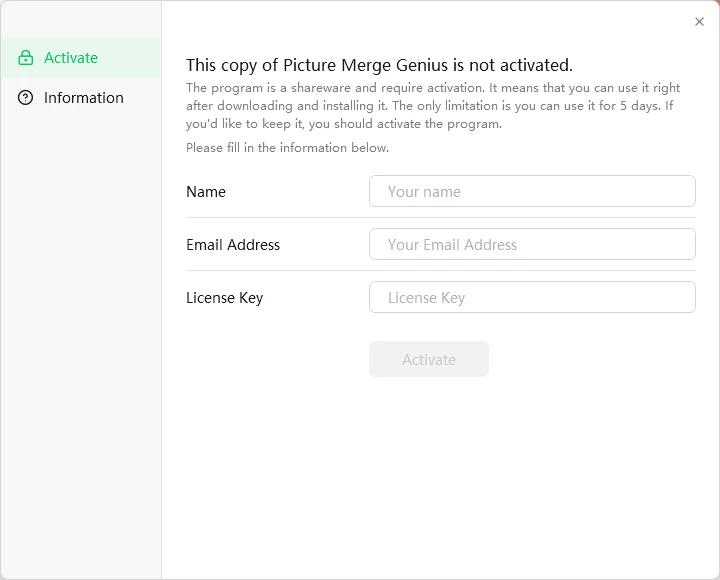
Click the lock icon at the top right of the main window
Enter your name, email address and the license key from your purchase
Click Activate; an internet connection is needed for this step, and the program confirms and restarts
No. Merging, cropping and exporting all happen on your own PC. There is no account and no cloud library, so your photos never leave the computer. The only time the program goes online is to activate a license or check for updates.
What is the difference between Collage, Grid and Stitch?
Collage fills dozens of built-in layouts with your photos. Grid makes equal cells in neat rows and columns, any size you set. Stitch joins whole photos end to end, horizontally or vertically, without cropping anything.
Will long screenshots and chat threads be cropped?
No. In Stitch mode photos are joined whole, end to end. What goes in is what comes out.
Portrait photos in landscape cells, faces cut off. How do I avoid that?
Three helpers do it for you. Smart layout sends portrait photos to tall cells and landscape photos to wide ones. Smart arrange picks the layout that suits your set and places each photo where it needs the least cropping. Smart crop keeps the most detailed part of a photo, usually the subject, in view when a crop is unavoidable.
The built-in layouts are not enough. Can I design my own?
Yes. In Collage mode open the Draw family and click Draw on canvas. Draw lines to split the canvas, or draw a circle, box or triangle to make a cell of that shape. Your strokes are tidied up automatically, and you can save a design as a reusable template.
Can I start from a social media size?
Yes. There are canvas presets for Instagram, Facebook, X, YouTube, Pinterest and LinkedIn, plus Square, A4, 2K wallpaper and a custom width and height.
Which file formats does it support?
It opens JPG, PNG, BMP, GIF, TIFF, WebP and HEIC and rotates photos by their orientation data. You can save as JPG, PNG (with a transparent background), BMP, TIFF or GIF, or copy the result to the clipboard and paste it into a chat, email or document.
How does the trial work?
Install it and every feature is available right away, with no account or sign-up. When the trial ends, activate the program with a license key to keep using it fully.
How do I activate, and on how many PCs can I use a license?
Click the lock icon at the top right of the main window, enter your name, email address and license key, then click Activate (an internet connection is needed for this step). Each license covers one computer: the Personal License is for private, non-commercial use, the Business License for use in a company or any other business.
Should I use the 64-bit or the 32-bit edition?
Use the 64-bit edition on 64-bit Windows, especially for very large, high-resolution outputs, which can exhaust the memory of a 32-bit program. Both installers are provided; choose the one that matches your Windows.
What do I need to run it?
Microsoft Windows with the .NET Framework 4.6.2 or later. If it is missing, the installer points you to the download page first.
Need help? Get in touch
Stuck on something, or have a suggestion? Send us a message or an email. Technical support and business questions are both welcome.
Instagram, Pinterest, Facebook and YouTube all want different image shapes. Picture Merge Genius has the canvas sizes built in: pick the size first and the layout fits, with no re-cropping per platform.
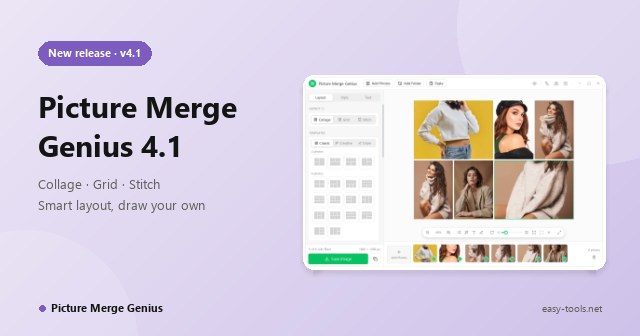
Picture Merge Genius 4.1 reduces making a collage to three steps: add photos, pick a layout, save. Three merge modes, smart layout and crop, and draw-your-own layouts, all processed on your PC.
Android app
Scan to download on your phone
Free · No ads · No sign-up
Point your phone camera at the code and open the link.
If the download is blocked inside a chat app, open the link in your browser.
If Android warns about an unknown source, allow this one installation in Settings.