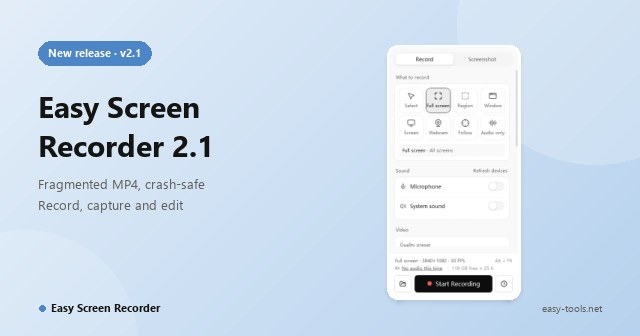
Press record. We'll protect every frame. Screen recorder and screenshot tool for Windows

Record, screenshot, annotate, review, trim and convert in one clean window. The defaults give you clear, smooth video straight away, and from a three-minute demo to an overnight capture session it holds on to every frame.

Windows 10 and 11 (64-bit) · English and Simplified Chinese interface

7 scopes

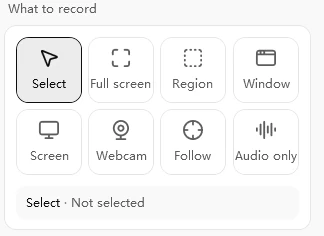
Full screen, region, window, single display, webcam, follow the mouse, audio only

Fragmented MP4

A self-contained chunk is written about every 2 seconds, so a crash keeps what you recorded

Screen pen

Pen, chalk, marker, brush and highlighter, drawn live while you record

2 languages

English and Simplified Chinese, switched instantly without a restart

What we kept hearing

Every frequent recorder has hit these walls

Recording your screen should not be stressful. Each improvement in Easy Screen Recorder 2.1 targets one of the problems below.

Two hours recorded, file will not open

The machine freezes, the power drops or the app is closed, and the whole take is an unplayable file.

How Easy Screen Recorder helps

Recording uses fragmented MP4, writing a self-contained chunk about every 2 seconds. An interruption costs only the last few seconds, and the app finds and repairs the file on the next launch.

No audio, found out too late

Wrong microphone, system sound off, and you only notice on playback.

How Easy Screen Recorder helps

Live level meters while idle, and a warning before you start if no sound is on or a device was unplugged.

Multi-monitor and high-DPI chaos

Misaligned regions, blurry output, a black frame from the vertical display.

How Easy Screen Recorder helps

Per-monitor DPI awareness with every coordinate in physical pixels. Rotated displays are straightened before capture.

A screenshot takes three apps

Capture in one tool, annotate in another, adjust color in a third, then pin it somewhere for reference.

How Easy Screen Recorder helps

Press Print Screen for the capture toolbar, annotate right after the shot, pin it to the desktop, and adjust it in the built-in viewer.

The more you record, the less you can find

Hundreds of timestamp filenames, and last week's demo is a needle in a haystack.

How Easy Screen Recorder helps

Recent shows thumbnails, first frames and durations, with search and date grouping, and the history has no size limit.

Nothing to point with while you teach

You want to circle a detail or jot a note on screen, but the recorder cannot help.

How Easy Screen Recorder helps

A built-in screen pen with chalk, marker, brush and highlighter. What you draw is what gets recorded.

Features

One window for recording, screenshots, editing and your library

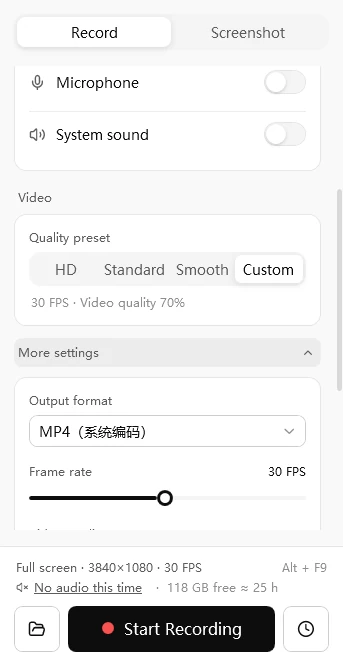
Easy Screen Recorder video settings: HD, Standard, Smooth and Custom quality presets, output format and frame rate
Quality presets and more settings
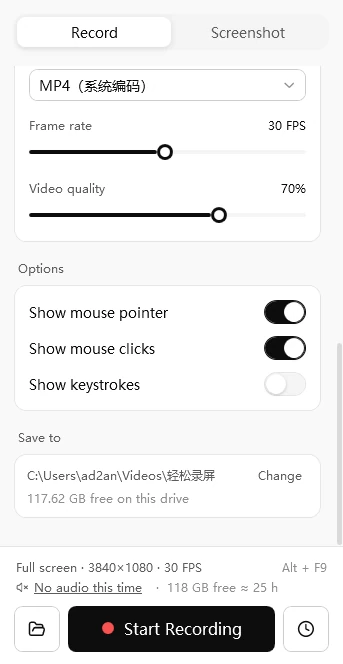
Easy Screen Recorder options for mouse pointer, mouse clicks and keystrokes, and the Save to folder
Options and save folder

Record

Clear and smooth by default, full control when you want it

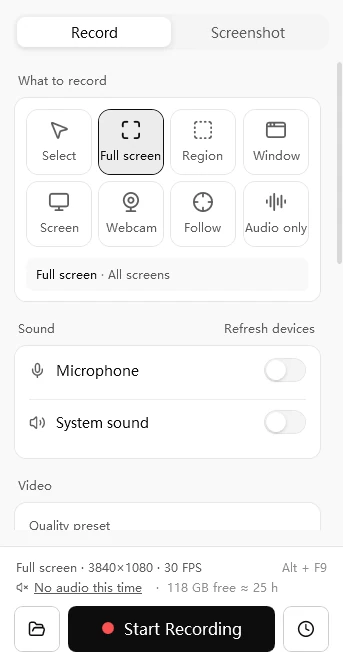
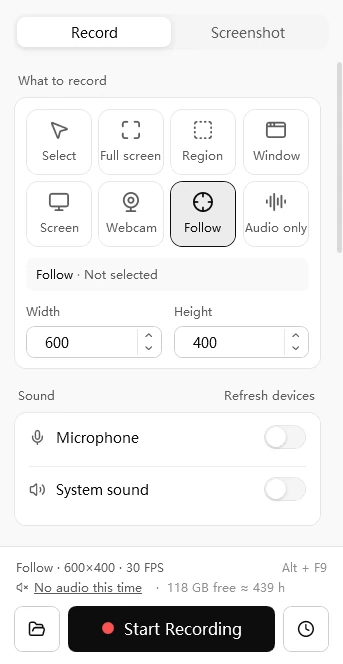
  • Seven capture scopes·full screen, region, window, single display, webcam, follow the mouse, audio only
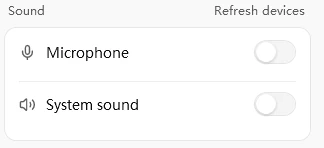
  • Sound·system sound and microphone together, with live levels
  • Quality·HD, Standard and Smooth presets in one click, or set your own frame rate and quality
  • Common sizes·1080p, 720p, vertical short video and square in a tap
  • Pre-flight summary·scope, size, frame rate, sound and an estimate of how long you can record with the current settings
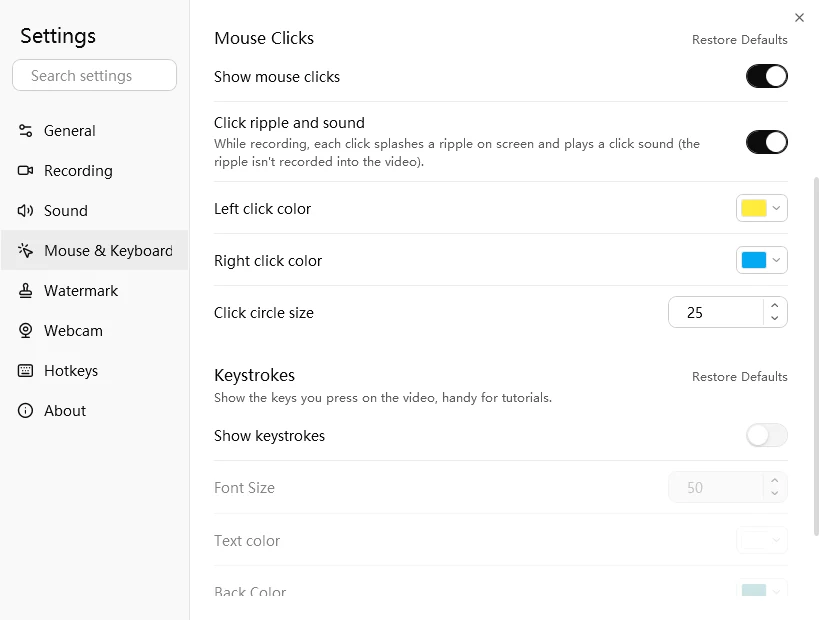
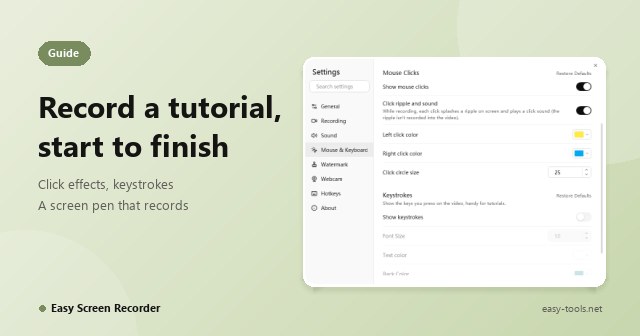
Easy Screen Recorder Mouse and Keyboard settings: pointer highlight, click effects and keystroke display
Click effects and keystroke display, handy for tutorials

While recording

A floating bar that never appears in the video

  • Floating control bar·timer, pause, snapshot, preview and stop, kept out of the recording
  • Screen pen·pen, chalk, marker, brush, highlighter, arrow and rectangle
  • Mouse and keyboard·mouse highlight, click effects, keystroke display and an elapsed-time overlay
  • Watermark and picture-in-picture·text and image watermarks, plus webcam picture-in-picture
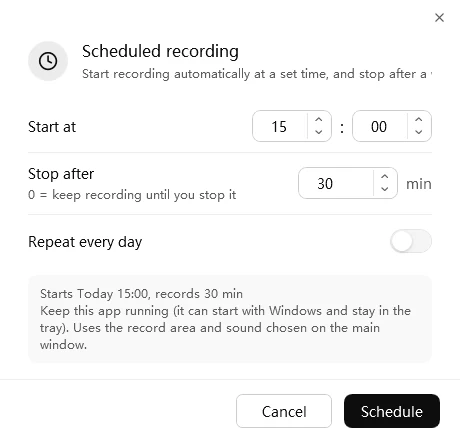
Easy Screen Recorder scheduled recording dialog with start time, length and Repeat every day
Scheduled recording: starts on time, stops after your chosen length, can repeat daily

Scheduling and automation

Start on time, open the result when you stop

  • Countdown·a pre-roll countdown you can mute or turn off
  • Scheduled recording·starts on time, stops at the length you choose, and can repeat every day
  • Hotkeys·global hotkeys you can customize, and launch at startup to wait quietly in the tray
  • When you stop·open the folder or play the file automatically
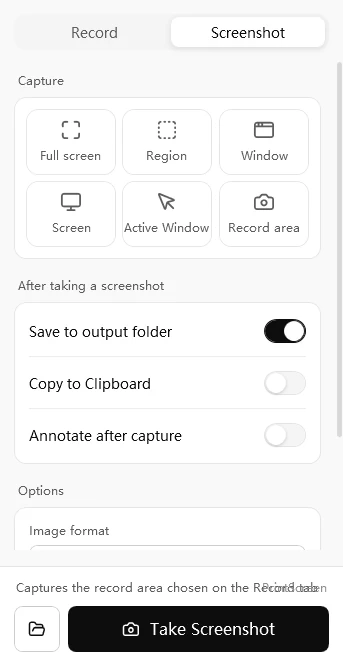
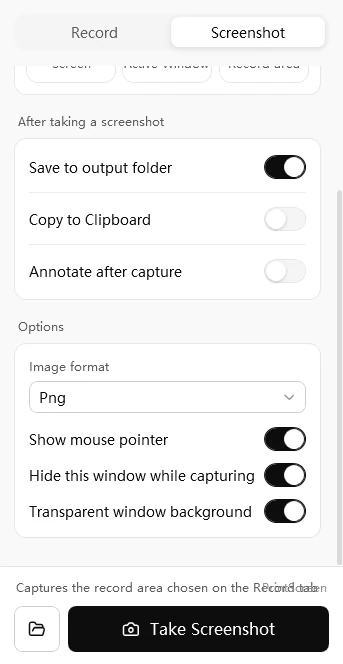
Easy Screen Recorder Screenshot tab: capture methods and what to do after a screenshot
Capture methods and after-capture actions
Easy Screen Recorder screenshot options: image format, show mouse pointer, hide this window while capturing, transparent window background
Image format and screenshot options

Screenshots and annotation

Capture, annotate and pin with one tool

  • One step·press Print Screen for the capture toolbar, then choose screenshot or recording
  • Several methods·full screen, region, window, single display or current window, with an optional 3, 5 or 10 second delay
  • Annotation·rectangle, ellipse, arrow, pen, highlighter, text, mosaic and numbered steps
  • Pin·keep a screenshot on top of the desktop for side-by-side reference
  • After the shot·pin, annotate, copy or open the folder from the notification

Image viewer and adjustments

A built-in viewer, so you do not need another app

  • View·wheel zoom, pan, and next or previous image in the same folder
  • Adjust·brightness, contrast, saturation and hue; rotate, flip, grayscale, pixelate and resize
  • Smooth·large images are processed in the background so sliders never stutter, with full undo and redo
  • Safe·overwriting writes a temporary file first, so the original is never corrupted mid-save

Player and video tools

Powered by the FFmpeg bundled with the app, nothing extra to download

  • Play·a built-in player that does not rely on system codecs
  • Process·trim the head and tail, convert to GIF, compress a video or extract the audio
  • After recording·play, trim, copy the file or open the folder from the notification
  • Ready to go·no separate codec or converter to install

Capture toolbar

Press Print Screen and go

There is no need to hunt for the app window. Press Print Screen (or the Ctrl + Shift + X hotkey) and a small toolbar appears at the top of the screen: choose screenshot or recording, pick the scope, and the capture starts right away. The toolbar itself never shows up in screenshots or videos.

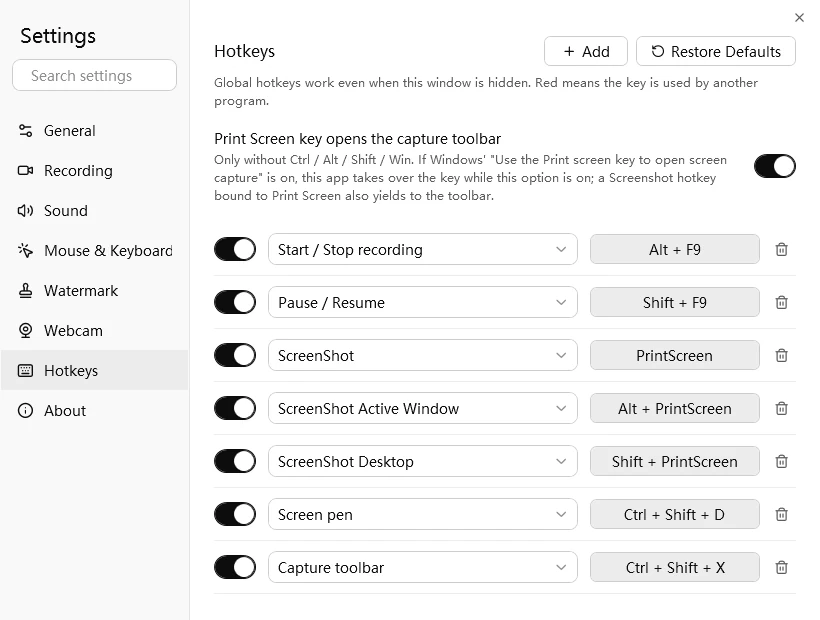
Easy Screen Recorder Hotkeys settings: Print Screen opens the capture toolbar, Alt + F9 starts and stops recording, Ctrl + Shift + D is the screen pen, Ctrl + Shift + X is the capture toolbar
Settings, Hotkeys: global hotkeys are customizable, and red means another program uses the key

Sensible defaults·Alt + F9 starts and stops recording, Shift + F9 pauses, Ctrl + Shift + D opens the screen pen. Alt + Print Screen and Shift + Print Screen keep their screenshot roles.

Conflict warnings·A hotkey shown in red is already used by another program, and the top bar warns you when another app has taken one.

Delayed screenshots·A 3, 5 or 10 second delay lets you open a menu first, and the countdown can be cancelled at any time.

Multi-monitor friendly·Everything is measured in true pixels, so selections across screens line up.

Screen pen

Draw while you record, and the chalk sounds like chalk

Open the screen pen during a recording and draw straight onto anything: what you draw is what you capture. Beyond the pen and highlighter there are chalk, marker and brush. Chalk has grain and ragged edges, the marker is a translucent chisel tip, and the brush thins with speed and tapers when you lift off. Fourteen colors, three weights.

  • A pen that makes noise·the writing sound is synthesized live, louder with faster strokes and silent when you lift the pen; the marker has a soft felt-tip sound
  • In the video·with System sound on, the writing sound goes into the recording with the picture; mute it when you do not want it
  • It remembers·the last pen, color and weight are still there next time
  • No lag·even a stroke of several thousand points redraws in under 2 ms on a 4K display (development test data)

The screen pen hotkey is Ctrl + Shift + D by default. Press Esc to leave the pen.

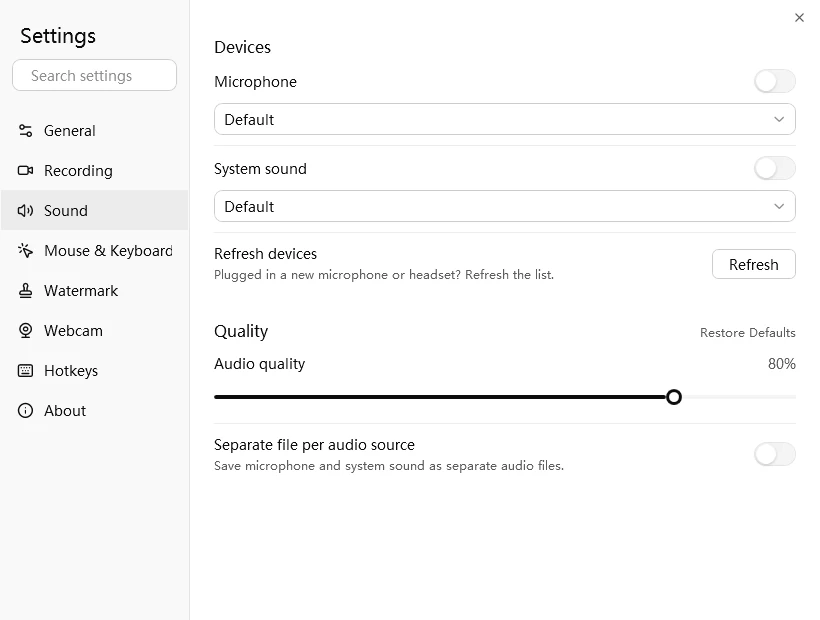
Easy Screen Recorder Sound settings: microphone and system sound devices, audio quality and saving each source separately
Sound settings: microphone, system sound and quality

Library

However much you record, find the one you need

Recent is more than a list of filenames: screenshots show thumbnails, videos show the first frame and duration. Search by name, and group by Today, Yesterday, This week, This month and Earlier. The history has no limit and is paged, so even ten thousand items stay fast.

Drag it out to share

Drag a recording straight into a chat window, a browser or Explorer.

Copy the file itself

Press Ctrl + C, paste into a chat, and the video or image is what gets sent.

Batch actions

Select several with Ctrl or Shift, then copy, remove from the list or delete in one go.

Built-in viewer

Double-click a screenshot to open it in the viewer and adjust brightness, contrast, rotation or size.

Development test data
0.12 sec Loading a list of 10,000 recent items
1.6 ms Filtering and searching the same 10,000 items by type
50 per page Only the current page is built, and only its thumbnails are loaded

These figures come from tests during development. Real-world results vary with hardware and data size.

Long recordings

Power cut, freeze or mis-click, what you recorded is still there

A standard MP4 writes its index last, so if a recording does not end cleanly the whole video is unplayable. Easy Screen Recorder records to fragmented MP4 and flushes a self-contained chunk roughly every two seconds. Interrupted mid-session, you lose only the last few seconds; stopped normally, it losslessly remuxes to a standard MP4 that plays everywhere.

What a forced interruption at 7.5 seconds leaves behind with each file structure

Standard MP4 0 sec usable · the index was never written
picture and audio data
index ?
Fragmented MP4 (Easy Screen Recorder) about 7.2 sec usable
1
2
3
4
5
6
7
Every chunk is self-contained and plays on its own. The unfinished piece on the right is where the recording was cut at 7.5 seconds.

7.2 of 7.5 sec

A Media Foundation capture force-killed at 7.5 seconds kept 7.2 seconds and 144 frames playable.

About 2 sec

The keyframe and fragment interval, and the typical ceiling on what an interruption can cost.

0-byte drift

In segmented recording, audio and video are split frame-exact, so nothing is lost or duplicated between segments.

These are development test figures from forced-interruption tests on specific hardware. Real-world results vary with hardware, encoder settings and how a session is interrupted.

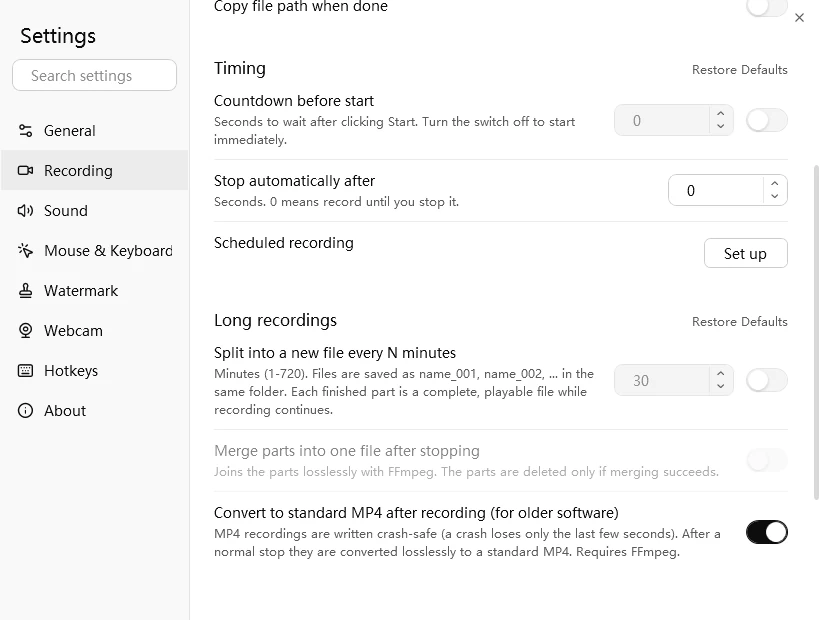
Easy Screen Recorder Recording settings: segment-to-disk, join segments after stopping and convert to standard MP4 when done
Settings, Recording: segment-to-disk, join after stopping, convert to standard MP4

Segment-to-disk for marathon sessions

Turn on segment-to-disk and a new file is finalized every 1 to 720 minutes (name_001.mp4, _002 and so on). Each one can be opened the moment it closes, and they can be joined losslessly afterward.

Repaired on the next launch

If the previous session ended badly, the app tells you at startup and flags those files in Recent, and one click repairs them.

Displays

Multi-monitor, high-DPI and portrait, all in true pixels

A laptop at 100% beside an external 4K at 150%, or one landscape panel next to one in portrait: these are everyday desks. Easy Screen Recorder runs per-monitor DPI aware and measures everything in physical pixels, so regions never misalign and the output never blurs.

Rotated displays are straightened before capture, and if you change resolution mid-recording it adapts instead of freezing. For encoding it prefers your GPU's hardware path (Media Foundation, NVIDIA NVENC, Intel QuickSync), which means lower CPU use, quieter fans and longer sessions.

Easy Screen Recorder capture scope tiles: Select, Full screen, Region, Window, Screen, Webcam, Follow and Audio only
Capture scopes
Easy Screen Recorder Sound section with Microphone and System sound switches
Sound switches

Easy to learn

Productive in a minute

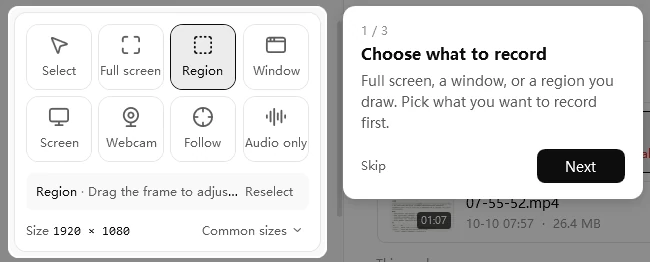
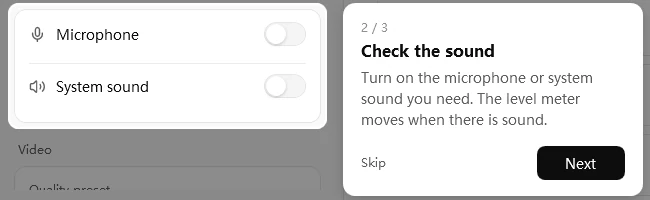
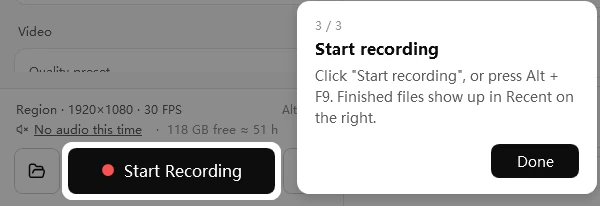
A three-step first run walks you through picking a scope, checking your sound and hitting start. After that, every button's tooltip carries its hotkey, and the top bar warns you when another app has taken one.

Easy Screen Recorder quick tour, step 1 of 3
Quick tour 1 / 3
Easy Screen Recorder quick tour, step 2 of 3
Quick tour 2 / 3
Easy Screen Recorder quick tour, step 3 of 3
Quick tour 3 / 3

Common controls out front

Scope, sound and quality presets stay visible; codec and frame rate live under More settings.

Searchable settings

Press Ctrl + F in the settings window, type "countdown", and jump straight to it.

One-click defaults

Each settings section can be restored on its own, without touching your hotkeys, language or save location.

Locked while recording

Options you cannot change mid-take are grayed out and say why, so you never assume a change took effect.

Use cases

Who records with it, and why

Trainers and educators

Webcam picture-in-picture plus the chalk pen lets you write on screen like a blackboard, and scheduled recording archives live classes automatically.

Product and QA

Print Screen grabs anything, keystroke display and click effects make every step visible, and you can annotate and pin shots for line-by-line review.

IT and operations

Segment-to-disk slices files by time like a DVR, so a power cut costs only the last few seconds.

Content creators

One-tap vertical and square sizes, trim the intro and outro, convert to GIF, publish.

Specifications

Record, screenshot, annotate, pin Yes
Crash-resistant fragmented MP4 Yes
Remux to standard MP4, segment join, file repair Yes
Built-in player Yes
Trim, GIF, compress, extract audio Yes
Bundled FFmpeg 9.0.2
System requirements 64-bit Windows 10 / 11, .NET Framework 4.6.2 or later
Interface languages English, Simplified Chinese

The open-source components used by the software (FFmpeg, NAudio, SharpDX, ImageProcessor and others) ship with their licenses in the licenses folder of the install directory.

Trial and registration

Try it free for 15 days, then register if it fits

Videos recorded during the trial have no watermark. Here is how the unregistered and registered versions differ, and how to register.

Unregistered

  • No watermark on videos recorded during the 15-day trial
  • Quality up to Standard (70), frame rate up to 30 fps
  • Trim, Compress and GIF exports use a minimum quality setting
  • After the trial, an "Unregistered" watermark appears in the middle of new videos

Registered

  • No watermark on videos
  • High-quality export

How to register

  1. In the app, open Settings, About, Register…
  2. Enter your name, email and the 16-character registration code (format XXXX-XXXX-XXXX-XXXX)
  3. Click Register. The app needs an internet connection once to activate. Buy now opens the purchase page.

The dialog also shows how many trial days are left.

Easy Screen Recorder registration dialog with Name, Email, registration code and the remaining trial days
Settings, About, Register...

Buy a license

Try the full program first (15-day free trial), then choose a license. Your license key is e-mailed to you after checkout. Prices are in US dollars.

Most popular

Personal License

$ 59 .99

One payment, no expiry, all future updates included.

Private, non-commercial use at home. One license per computer.

  • Every feature, no watermark
  • Updates included
  • License key e-mailed after checkout
Buy Personal

Commercial License

$ 119 .99

One payment, no expiry, all future updates included.

Use in a company or any other business. One license per computer.

  • Every feature, no watermark
  • Updates included
  • License key e-mailed after checkout
Buy Commercial

Education License

$ 29 .99

One payment, no expiry, all future updates included.

Students, teachers and schools. One license per computer.

  • Every feature, no watermark
  • Updates included
  • License key e-mailed after checkout
Buy Education
  • Secure checkout with PayPal
  • 30-day money-back guarantee
  • One license per computer

Several licenses, a school or a non-profit? Ask us for a quote. Already bought? See the activation guide or look up your license key. By buying you agree to the store's terms.

Easy Screen Recorder

Download

The latest version of Easy Screen Recorder is v2.1 for Windows. It is free to download and includes a 15-day trial.

Requires Windows 10 and 11 (64-bit) · .NET Framework 4.6.2 or later · FFmpeg is included

FAQ

Trial, recording and troubleshooting

More detail is in the user manual that comes with the app.

How long is the free trial, and what happens when it ends?

Easy Screen Recorder has a 15-day trial. Videos you record during the trial carry no watermark, and the registration dialog shows how many trial days are left. After the trial, new recordings get an "Unregistered" watermark in the middle of the picture. Registering removes the watermark and unlocks high-quality export.

What are the limits of the unregistered version?

Unregistered, recording quality goes up to Standard (70) and the frame rate up to 30 fps, and exports through Trim, Compress and GIF use a minimum quality setting. After the 15-day trial an "Unregistered" watermark is added to the middle of new videos. A registered copy has no watermark and exports at high quality.

If the computer freezes or loses power mid-recording, is the video lost?

No. Easy Screen Recorder records to fragmented MP4 and writes a self-contained chunk about every two seconds, so an interruption usually costs only the last few seconds. When you stop normally, the file is remuxed losslessly to a standard MP4. If the last session ended badly, the app tells you on the next launch, flags the files in Recent and repairs them in one click. How much survives depends on hardware, encoder settings and how the recording was interrupted.

My recording has no sound. What should I check?

Turn on Microphone or System sound before you start, then check the device under Settings, Sound. Click Refresh devices after plugging in a new microphone or headset. The main window shows live levels while idle, and warns you before you start if no sound source is on.

Does it handle multiple monitors, high-DPI screens and portrait displays?

Yes. The app runs per-monitor DPI aware and measures everything in physical pixels, so regions do not shift and the output does not blur. A rotated display is straightened before capture, and a resolution change in the middle of a recording is handled automatically. If a recording comes out black, turn on Compatibility capture mode under Settings, Recording and restart the app.

Do I need to install FFmpeg or codecs separately?

No. The installer includes FFmpeg 9.0.2, which powers the built-in player, trimming, GIF conversion, compression and audio extraction. It does not rely on system codecs. If the app reports that FFmpeg is missing, the ffmpeg folder next to the program was probably deleted; reinstalling fixes that.

Which systems and languages are supported?

It runs on 64-bit Windows 10 and 11 and needs .NET Framework 4.6.2 or later. The interface is available in English and Simplified Chinese, and the language switches immediately without a restart.

A hotkey does nothing or clashes with another program. What now?

Open Settings, Hotkeys. A key shown in red is already used by another program, so pick a different combination. The capture toolbar uses Ctrl + Shift + X by default, and Print Screen can open it too. Alt + Print Screen and Shift + Print Screen keep their screenshot roles.

Need help? Get in touch

If something does not work, or you have a suggestion, send us a message or an email.