Easy Video Compressor 1.1: Turn Big Videos into Small, Web-Friendly MP4s
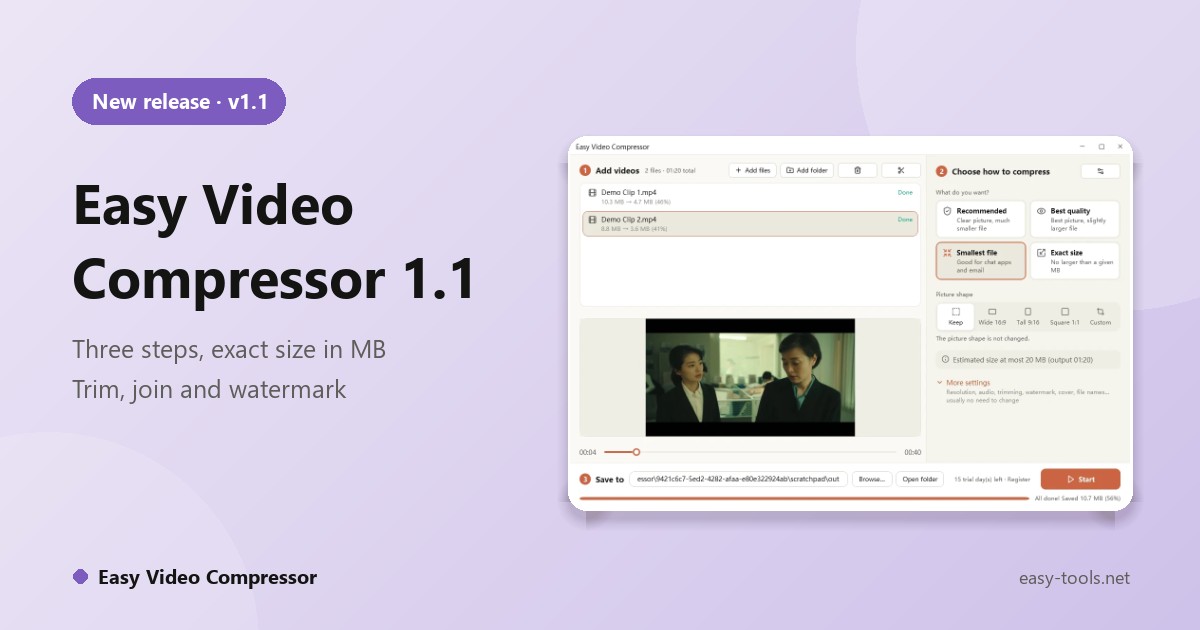
A video that takes ten seconds to start on your website. An email that bounces because the clip is 20 MB over the limit. A phone MOV or a meeting MKV that will not play in the browser. These problems share one fix: turn the video into a small, web-friendly MP4. Easy Video Compressor 1.1 does that one thing, in three steps.
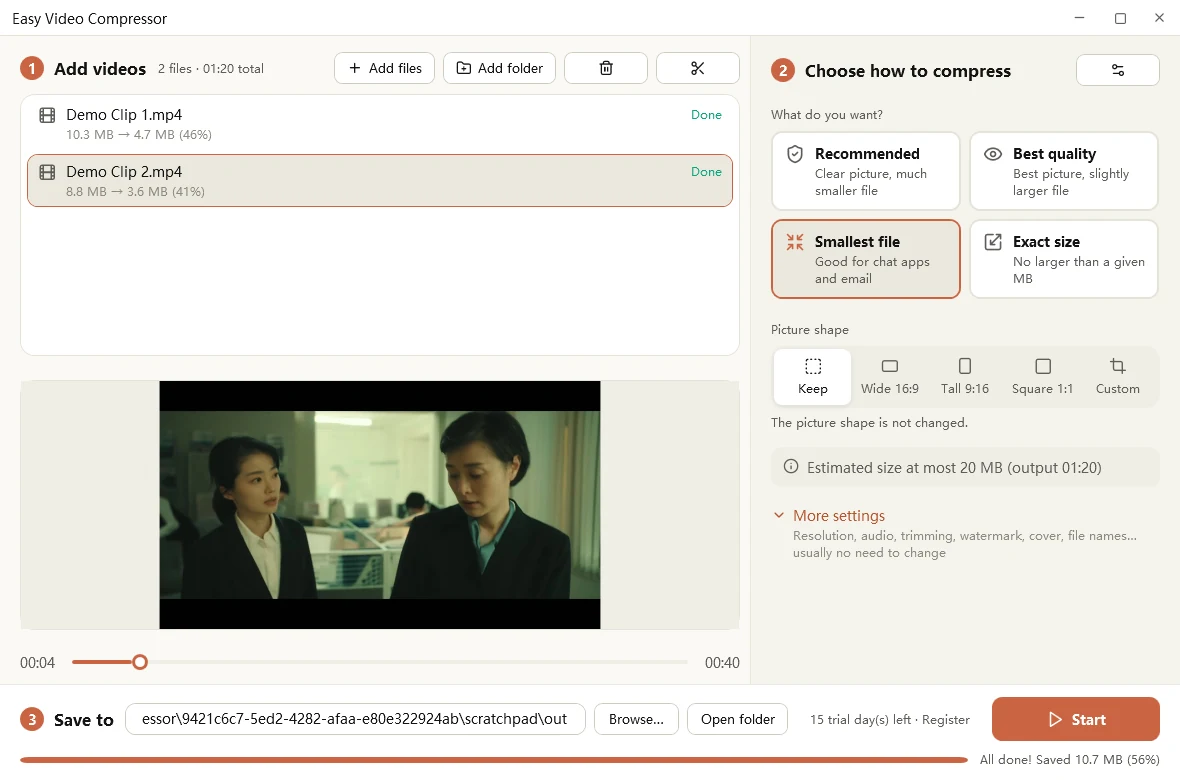
Three steps, no bitrate math
- Add videos. Drag in files or a whole folder. MP4, MOV, MKV, AVI, WMV, FLV, WebM, TS, GIF and other common formats are accepted.
- Choose how to compress. Recommended gives a clear picture and a much smaller file. Best quality keeps the best picture at a slightly larger size. Smallest file suits chat apps and email. Exact size keeps the file under a given number of MB.
- Start. Progress, time left and the status of each file are shown, and you can open the output folder when it is done.
In one of our tests, a 38-second 1920x1080 classroom recording went from 70.9 MB to about 6.2 MB. Results depend on the picture content and the option you choose.
20 MB over the limit? Set the size
Choose Exact size and enter the maximum in MB (10, 25, 50, 100, 200 or any number). The app computes a target bitrate from the duration and encodes in two passes to fit, lowering the resolution first if the bitrate would otherwise be too low. An estimated size is shown before you start. If the video is already smaller than your limit, it is not enlarged.
Why the result plays well on the web
Many videos play fine on a PC but stall in a browser, and the cause is usually how the file is packaged rather than how big it is. The output is built for the web:
- H.264 High, yuv420p and AAC: the most compatible combination, playable in nearly every browser and phone
- Index at the front (faststart): playback can begin before the whole file has downloaded
- Regular keyframes: seeking responds quickly
- No re-encoding when it is not needed: a video that already meets the requirements only gets a new container, which is fast and loses no quality
Reshape, trim and brand in the same run
Landscape to portrait
Choose Keep, Wide 16:9, Tall 9:16, Square 1:1 or Custom. For a custom size, type the width and height in pixels, then drag the white frame on the preview to choose the area you want to keep.
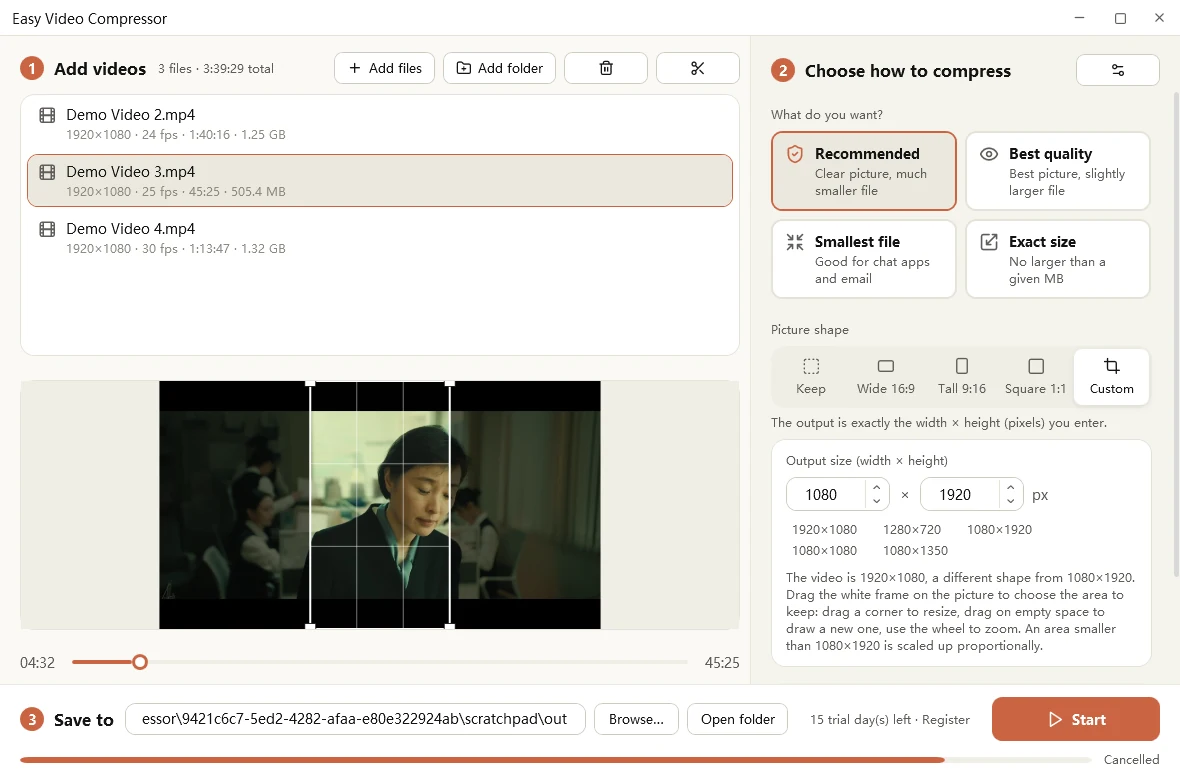
Trim and join
Cut out a selection or keep only a selection. You can work on several parts of one video, and join several videos in order. Cut sections show in red on the timeline and can be restored.
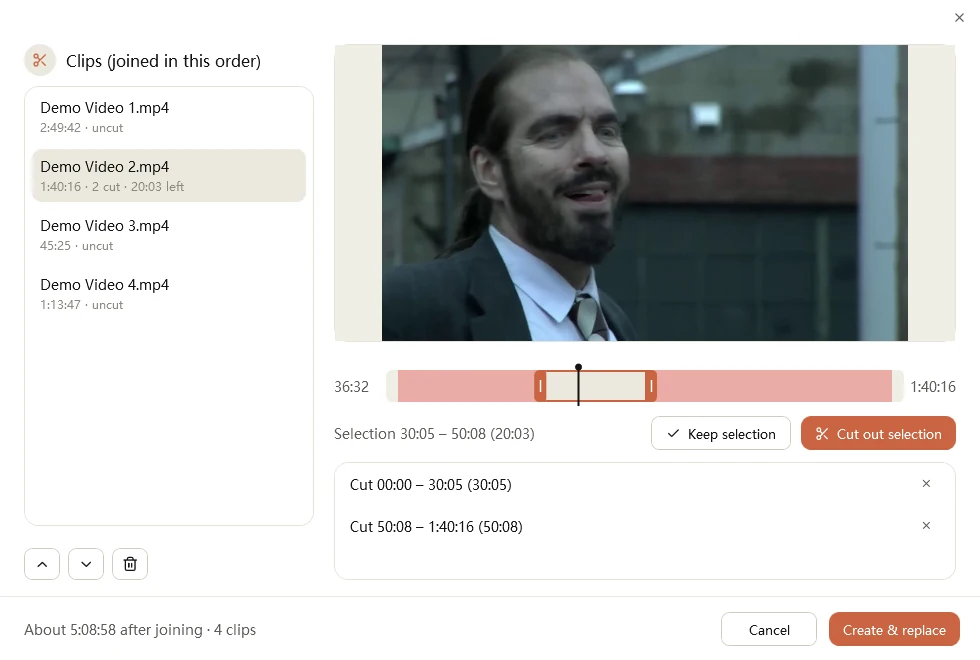
Watermark and cover image
Add an image or text watermark and set its position, size, opacity and margin. You can also create a cover image for use as a web poster. Compression, cropping, trimming, watermark and cover are all done in the same pass.
Batch and automation
Save your settings as a preset file (.evcv). The same file can be passed to the command-line tool evc-video, which runs on Windows or Linux servers and takes three arguments: the preset file, the source video folder and the output folder. That makes nightly compression of a whole library possible.
Your videos are not uploaded
Everything is processed on your own PC. Videos do not go through any third-party server. FFmpeg is bundled with the app, so there is nothing else to download or configure.
See the Easy Video Compressor page or download the trial.