How to Combine Multiple Photos into One Picture on Windows: Collage, Grid and Long Image
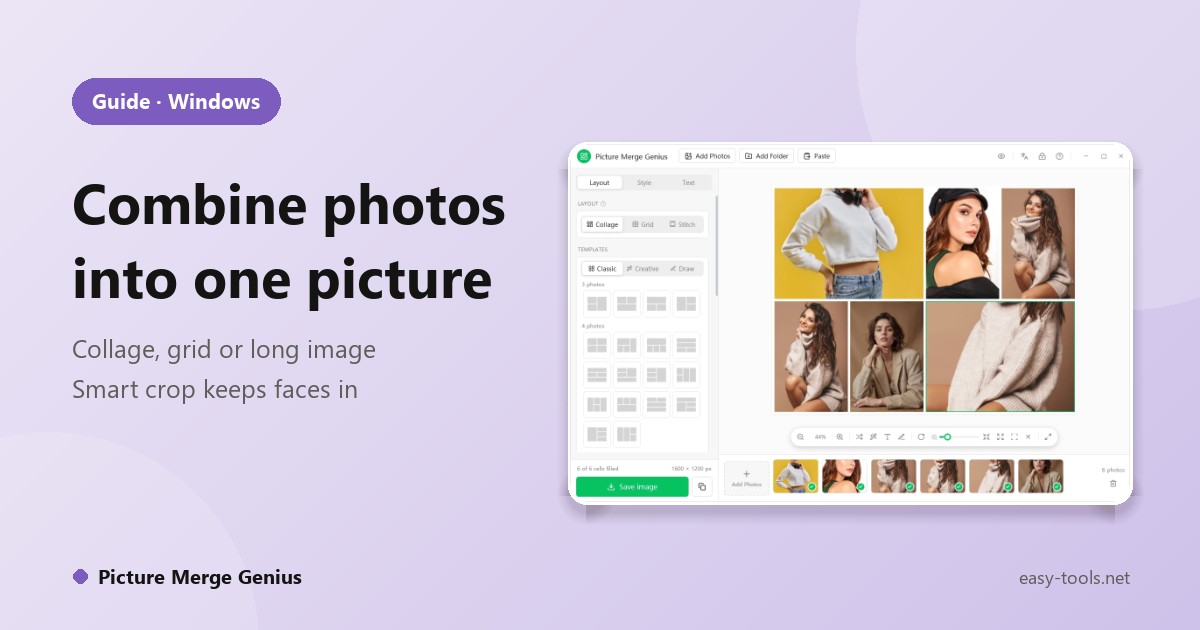
You want several photos in one picture: a before and after, a four-photo collage for social media, a row of screenshots as one long image. Windows can do it, but the built-in ways are manual. Here are the options on Windows 11 and 10 and how to combine photos in a few clicks.
Option 1: Paint or PowerPoint (manual)
In Paint you can open one picture, enlarge the canvas, then paste the others in and move them into place. In PowerPoint you can drop photos on a slide, arrange them, then right-click the selection and choose Save as Picture. Both work, but alignment, spacing and sizes are all up to you, and every change means redoing the layout.
Option 2: Picture Merge Genius
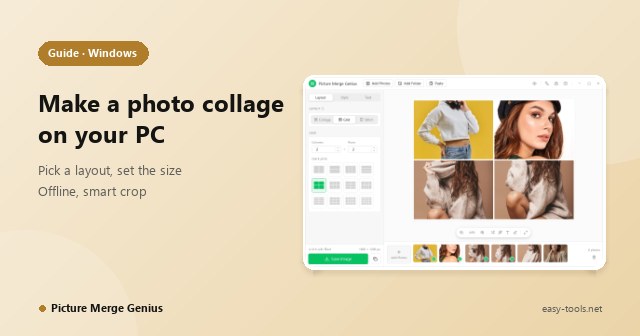
Picture Merge Genius has three modes for three jobs:
| Mode | What it does | Good for |
|---|---|---|
| Collage | Fills dozens of built-in layouts with your photos, including slanted splits, circles, hearts and polaroid cards | Social posts, gifts, albums |
| Grid | Equal cells in neat rows and columns, in any size you set | Product sets, before-and-after rows |
| Stitch | Joins whole photos end to end, horizontally or vertically, without cropping | Long screenshots, chat threads, panoramas of a series |
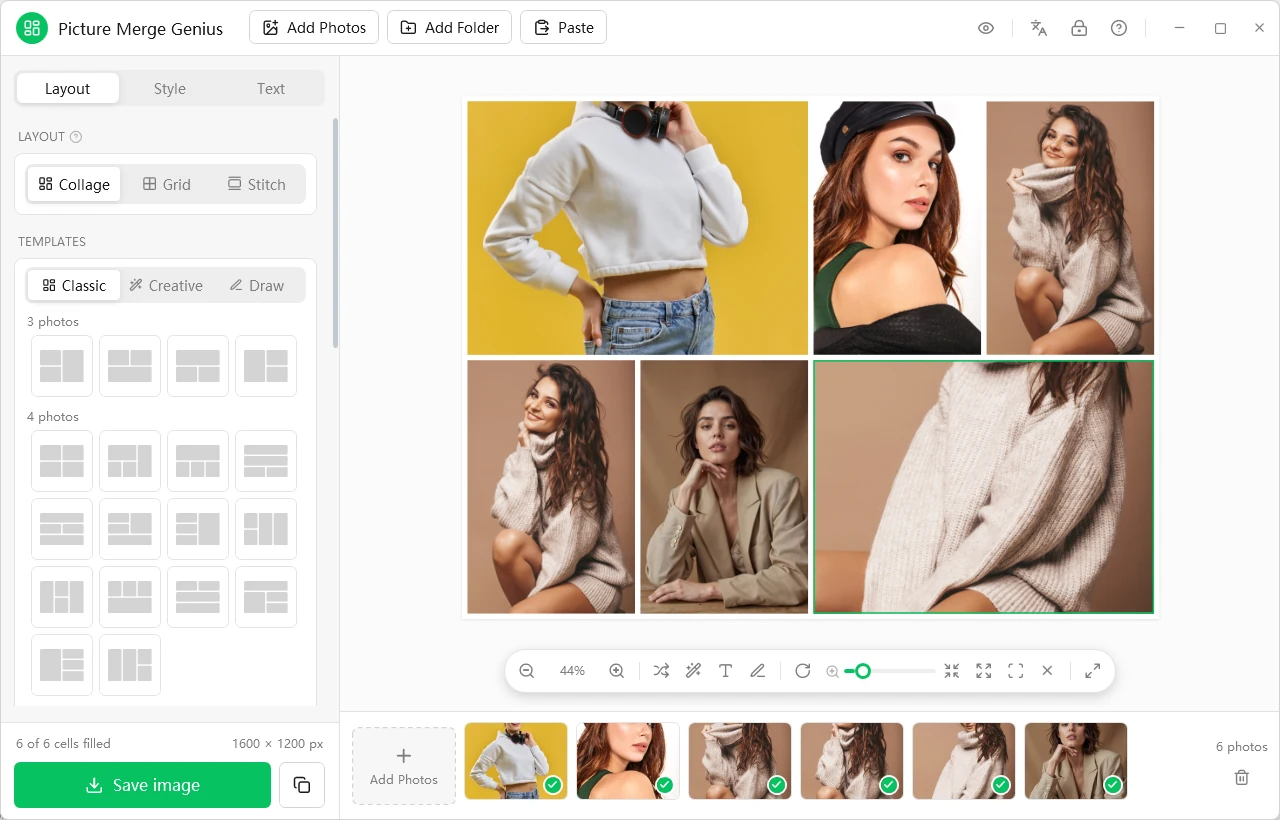
- Add photos. Drag them in. JPG, PNG, BMP, GIF, TIFF, WebP and HEIC open.
- Choose Collage, Grid or Stitch and a layout. Start from a social-media canvas size (Instagram, Facebook, X, YouTube, Pinterest, LinkedIn) or enter a custom width and height.
- Let it help with the crop. Smart layout sends portrait photos to tall cells, smart arrange minimises cropping and smart crop keeps the subject in view.
- Style it. Adjust spacing, rounded corners, shadows, background colour and text.
- Save as JPG, PNG, BMP, TIFF or GIF, or copy the result to the clipboard.
Tips for a clean result
- Decide the canvas size first (for example 1080 x 1080 for a square post), then pick the layout, so nothing gets scaled later.
- Use similar brightness across photos in a grid; it looks more deliberate.
- For long screenshots use Stitch, which keeps every pixel instead of cropping.
More on canvas sizes in one set of photos, many platforms. Everything is processed on your PC; photos are not uploaded.