Classic Screensavers on Windows 11: Get 3D Pipes, 3D Maze and Starfield Back for Free
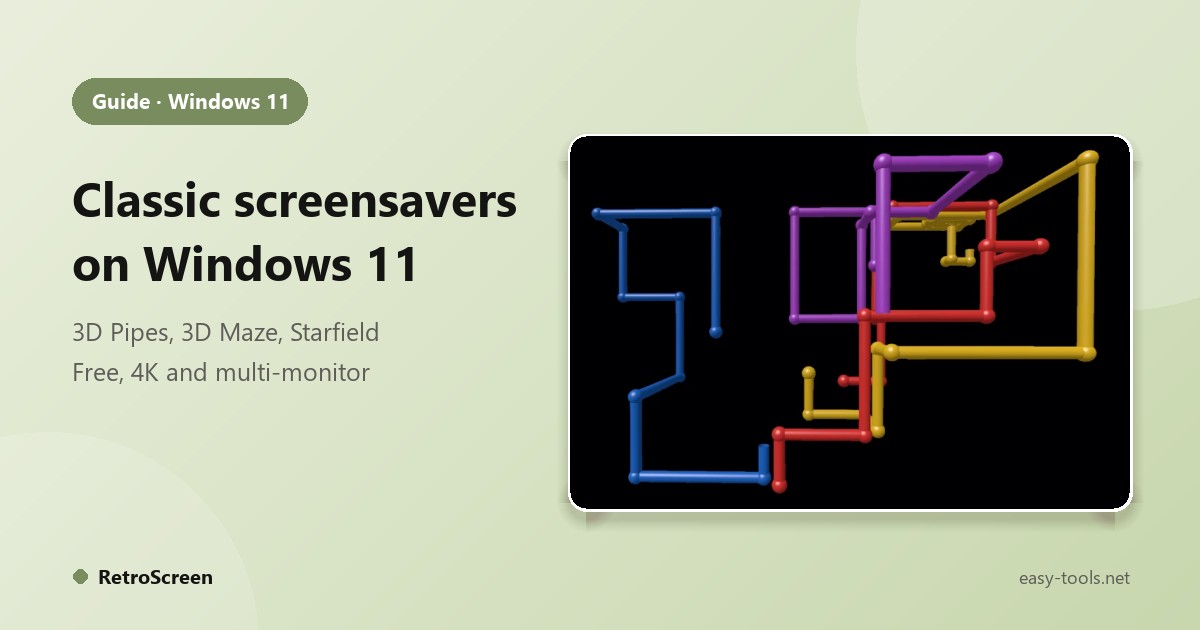
Windows 11 still has screensavers, but the choice is small and the classics many people remember are not in it. If you are looking for 3D Pipes, the 3D Maze or the Windows 98 starfield on Windows 11, here is how to open the screensaver settings and how to get those classics back for free.
Where the screensaver settings are on Windows 11
- Open Settings and go to Personalization, then Lock screen.
- Scroll down and click Screen saver. The classic Screen Saver Settings window opens.
- Pick a screensaver from the list, set Wait (the idle minutes) and click OK.
On Windows 10 the same page is under Personalization, Lock screen, Screen saver settings.
What Windows 11 includes
The list contains a few simple ones such as 3D Text, Bubbles, Mystify, Ribbons and Photos. It does not include 3D Pipes or 3D Maze.
Get the Windows 98 classics: RetroScreen
RetroScreen brings back 3D Pipes, 3D Maze, Starfield, Mystify and Flying Windows as ordinary Windows screensaver files, free, with no trial and no watermark.
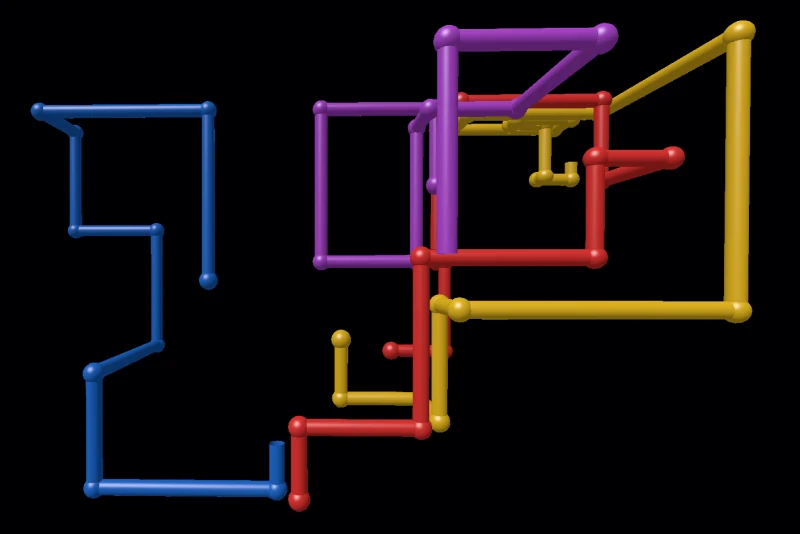
- Download and run RetroScreen_Classic_Setup.exe and accept the administrator prompt. Setup copies the screensavers to the one Windows folder that the settings list reads.
- On the last page leave Open Screen Saver Settings now ticked and click Finish.
- Choose 3D Pipes (or another classic) in the list, set the wait time and click OK. Use Preview to see it first.
They run at the native resolution of your monitors, including 4K, and each display shows its own independent copy. They need a DirectX 12-capable GPU, which includes the integrated graphics in recent laptops, on 64-bit Windows 10 or 11.
Is this Microsoft’s software?
No. RetroScreen is an independent project written from scratch; no Microsoft files are included, and it is not affiliated with or endorsed by Microsoft. Windows is a trademark of Microsoft Corporation.
Screensaver not starting?
- It never appears: check the Wait time; any mouse or keyboard activity resets it, and some apps (video players, presentations) deliberately keep Windows awake.
- The screen turns off instead: Windows may turn off the display sooner than your screensaver wait. Under Settings, System, Power adjust the screen timeout so it is longer than the screensaver wait.