How to Compress a Video to a Target Size on Windows: Under 10 MB, 25 MB or Any Limit
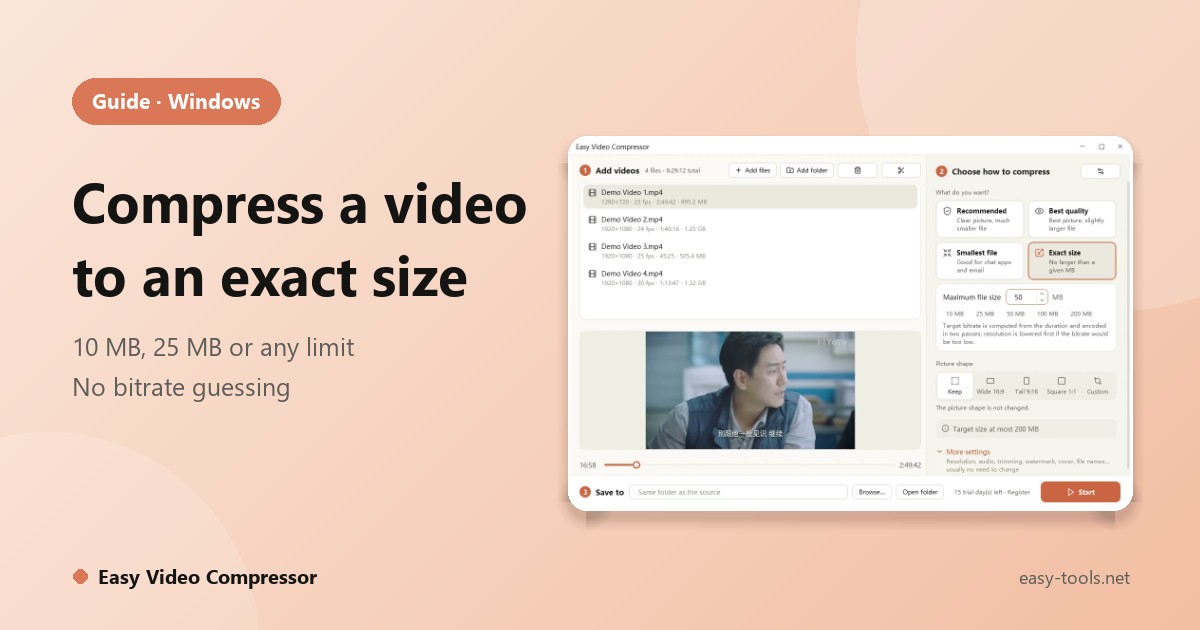
A clip that is 20 MB over an email limit, a phone video too big for a chat app, a screen recording that stalls on your website. Zipping a video barely shrinks it, because video is already compressed. To get a real reduction you re-encode the video, and the trick is doing it without trial and error. Here is how to compress a video to a size you choose on Windows.
Why zipping does not work
MP4, MOV and MKV files are already compressed, so a ZIP file is about the same size. What shrinks a video is a lower bitrate, a lower resolution, or both. Doing that by hand means guessing a bitrate, encoding, checking the size, and trying again.
Compress to an exact size with Easy Video Compressor
Easy Video Compressor does the arithmetic for you. You say “no larger than N MB” and it works out the bitrate from the video’s length.
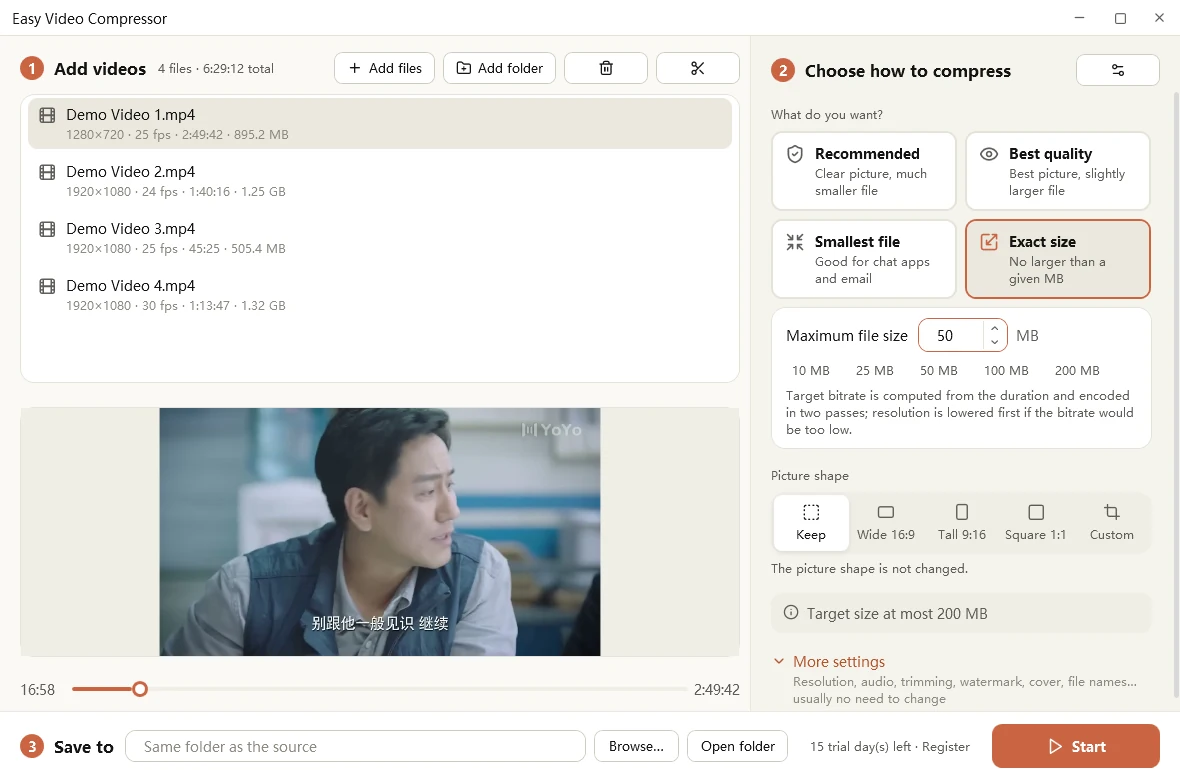
- Add videos. Drag in files or a folder. MP4, MOV, MKV, AVI, WMV, FLV, WebM, TS and GIF are accepted; the result is always an MP4 (H.264 + AAC).
- Choose how to compress. Recommended for most videos, Best quality when picture quality matters most, Smallest file for chat and email, or Exact size for a hard limit such as 10, 25 or 50 MB.
- Check the estimate and start. With Exact size the app encodes in two passes to fit under your limit, lowering the resolution first if the bitrate would otherwise get too low. A video already under the limit is not enlarged.
In one of our tests a 38-second 1920 x 1080 recording went from 70.9 MB to about 6.2 MB. Results depend on the footage and the setting you choose.
Know the limit you are aiming for
Email services cap attachments (Gmail’s limit is 25 MB) and chat apps and social networks set their own upload limits, which change over time. Look up the current limit for the service you use, then set Exact size a little below it, because sending adds a small overhead.
Other things you can do in the same run
- Trim and join: cut out a section or keep only the parts you need, and join several clips in order. Less footage is the most effective way to get a smaller file.
- Change the shape: turn landscape into a tall 9:16 or square video with crop, pad or a blurred background.
- Add a watermark or a cover image.
- Web-friendly output: the index is moved to the front so playback can start before the whole file has downloaded.
Everything runs on your PC; videos are not uploaded to any server. More in what’s in Easy Video Compressor 1.1.