Features

Batch watermark software, feature by feature

Multi-layer text and logo watermarks, seven output formats, six resize modes and batch rename: everything Batch Watermark Creator can do with a whole folder of images, each feature shown in the real app.

Multi-layer watermarks

Text and image layers, stacked freely

What you see is what you get

The canvas preview is the final result

Dynamic text

File name, date and EXIF placeholders

Real size preview

See quality and file size before export

Seven output formats

JPG, PNG, WebP, TIFF and more

Six resize modes

Fit, pad, crop, stretch and more

Four languages

English, Chinese, French, Spanish

The watermark system

Text and logo watermarks work together. Add as many as you want and configure each one separately.

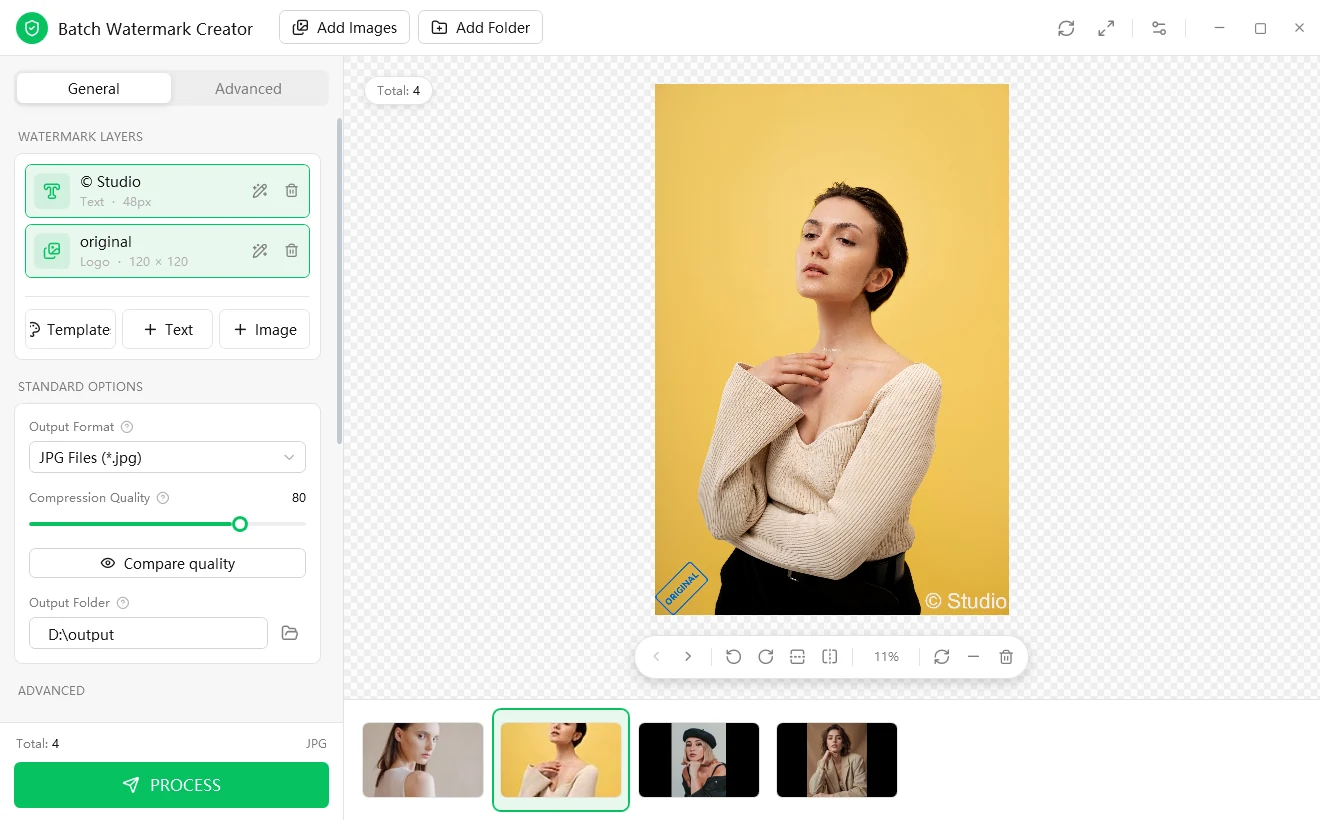
Watermark Layers panel showing a text layer and an image layer side by side

Layers

Text and image layers, stacked freely

Add as many text and image watermarks as you like. They are all listed under Watermark Layers, and each one can be switched on and off and configured on its own, so changing one layer never disturbs the others.

Text watermarks

Every detail of the text is adjustable

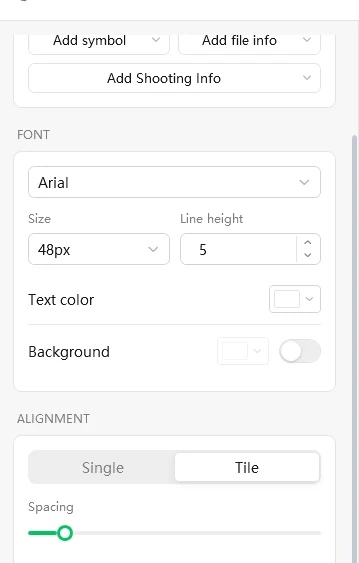
A multi-line box with bold, italic, underline and left, center or right alignment. Choose the font, size, line height and color, and optionally give the text its own background plate.

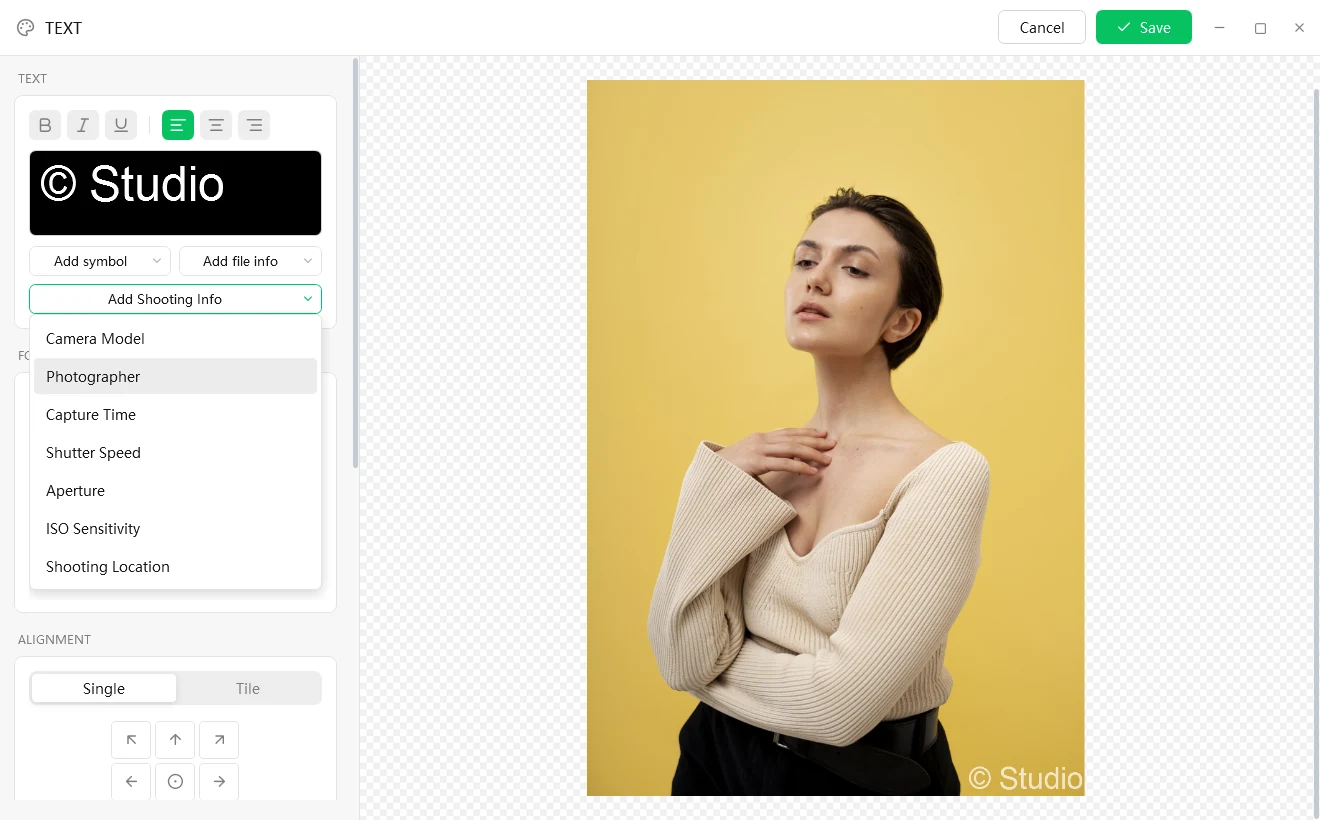
Add Shooting Info menu listing Camera Model, Photographer, Capture Time, Shutter Speed, Aperture and ISO Sensitivity

Dynamic text

Set it up once, and every image gets its own values

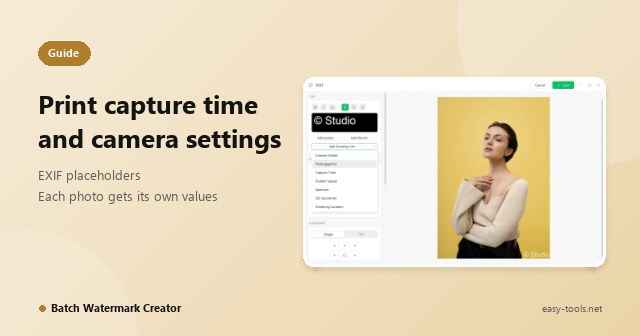
Insert placeholders into the watermark text and the same watermark picks up each picture's own details. Stamp a whole client shoot with each frame's capture time and camera model after a single setup.

© ® ™ symbols File name Modified and original date Camera model Capture time Shutter speed, aperture, ISO Photographer, location

Logo watermarks

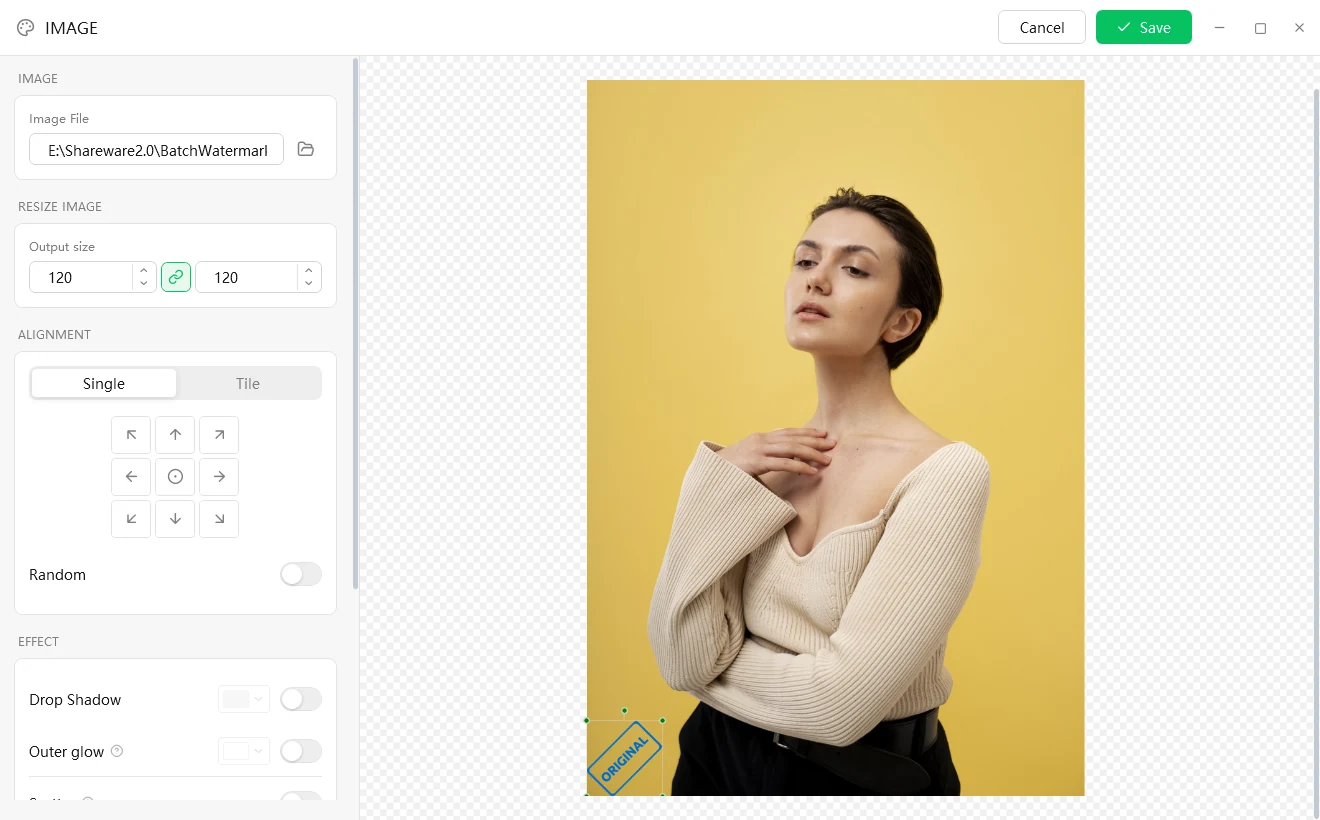
Your brand logo as a transparent PNG

Browse to your logo file and set its output width and height (4 to 1000 pixels). The chain button between them locks the aspect ratio, so changing one side recalculates the other and the logo never gets distorted. A PNG with transparency keeps its transparent areas, with clean edges and no white box.

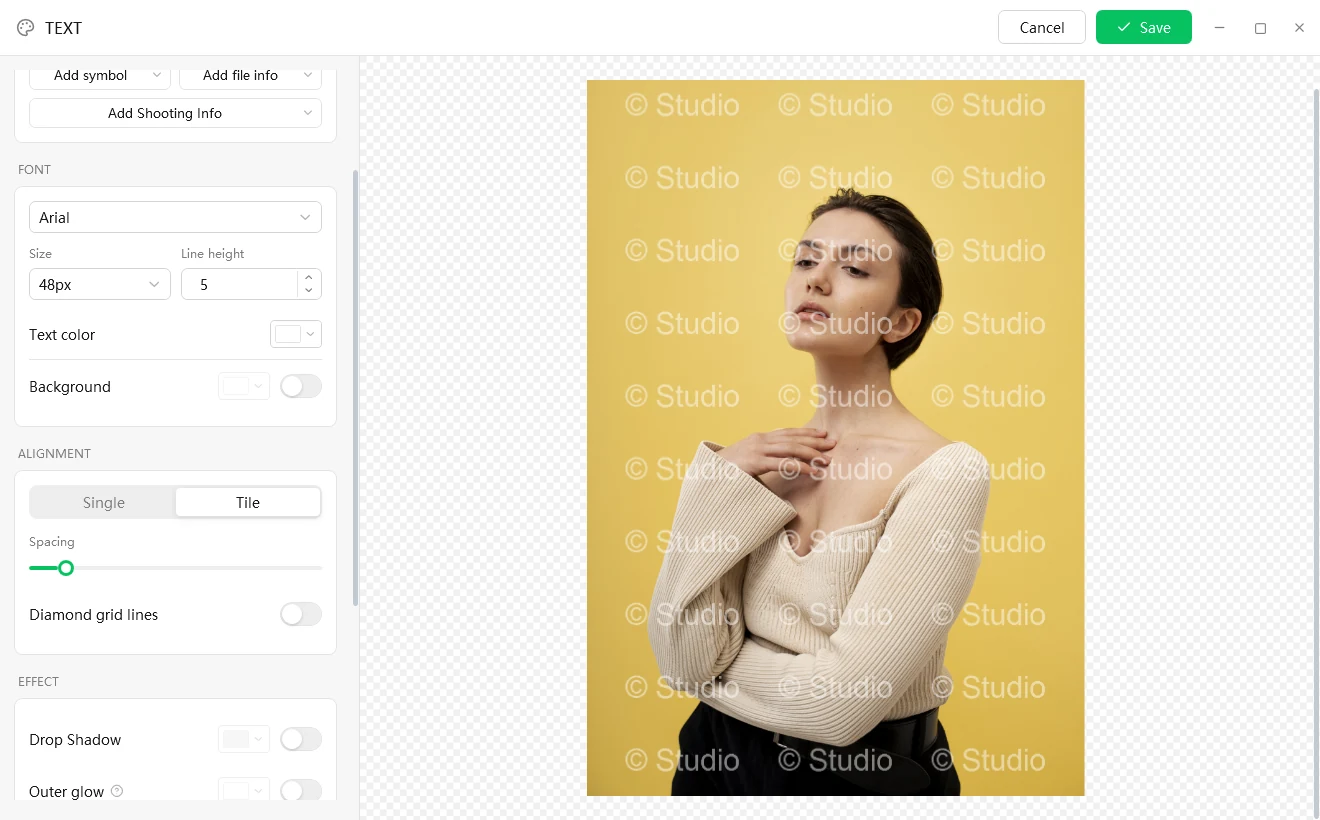
Tile mode: the watermark text repeated across the whole photo

Layout and placement

Snap to a nine-grid, or tile across the whole image

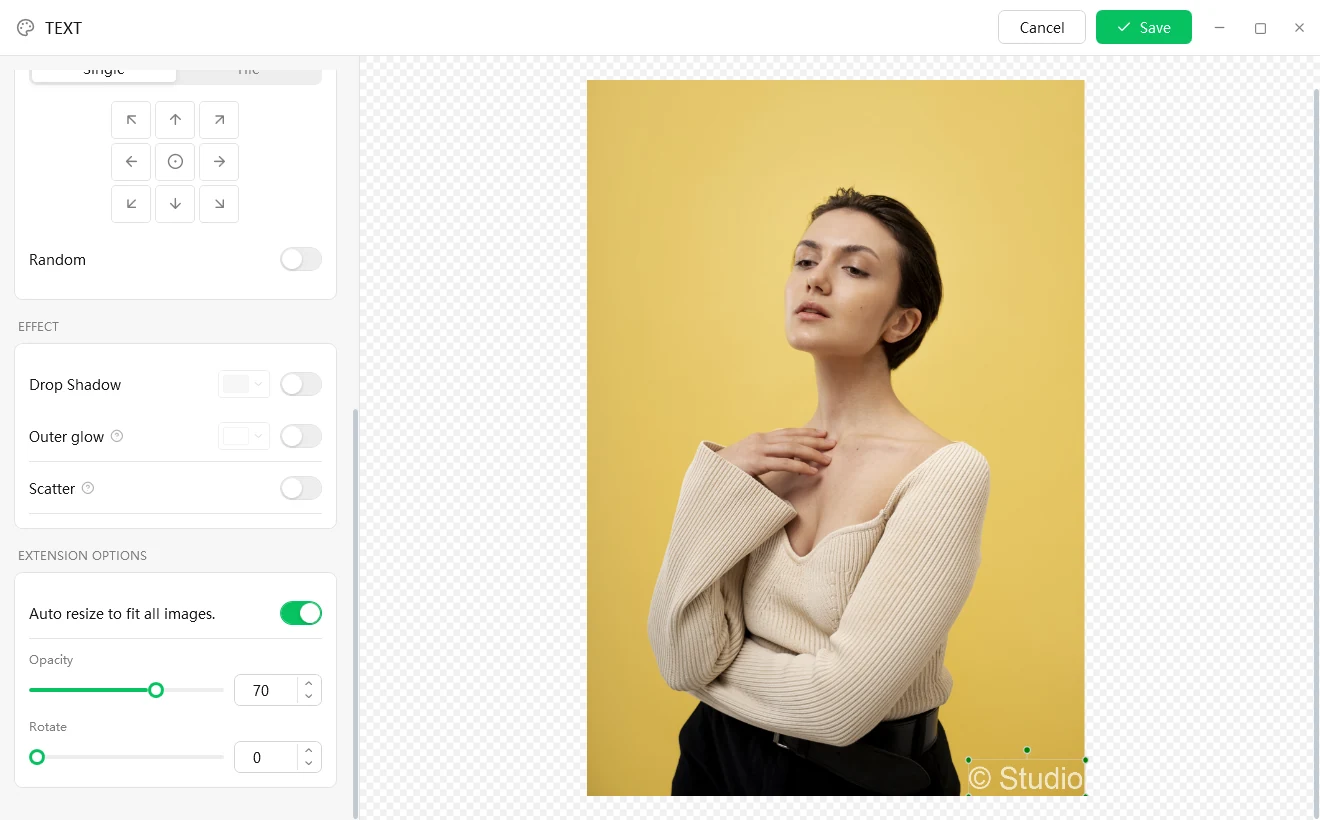
In Single mode the watermark appears once. Nine buttons snap it to a corner, an edge or the center, you can drag it anywhere on the canvas, and you can switch on Random so each image gets a different position, which defeats batch cropping. Tile mode repeats the watermark across the entire image with adjustable spacing, which makes it much harder to crop or clone out.

Effects

Three effects, stackable

Over photos that are light in one place and dark in another, a little effect keeps the watermark readable. You can switch on any combination of them.

  • Drop shadow ·A soft, directional shadow that lifts the mark off the picture
  • Outer glow ·An even halo that keeps light text readable on dark images
  • Scatter ·A worn, spray-paint grain for a stylized finish

Output and compression

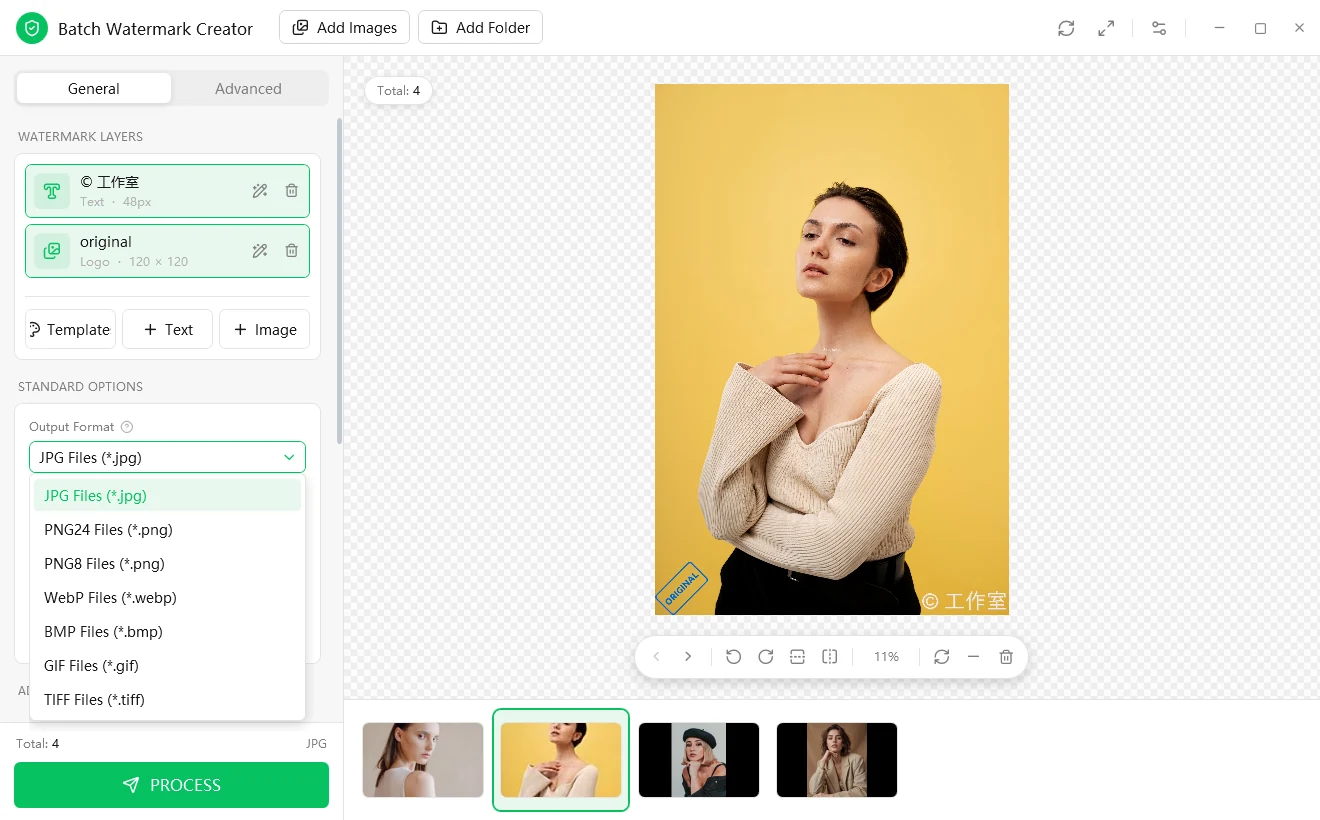
One output format for the whole batch, with a real preview of quality and file size.

Output Format dropdown listing JPG, PNG24, PNG8, WebP, BMP, GIF and TIFF files

Output formats

Seven formats, one export

Whatever format the originals are in, they are all saved in the format you choose. Compression quality runs from 10 to 100 (the default is 80); lower values give smaller files and more visible quality loss.

  • JPG ·Lossy, no transparency
  • PNG-24 ·Lossless true color, with transparency
  • PNG-8 ·Indexed 256 colors, smaller files
  • WebP ·Small files at the same visible quality
  • BMP ·Uncompressed, largest files
  • GIF ·Indexed color; the quality setting has no effect
  • TIFF ·Common in print workflows

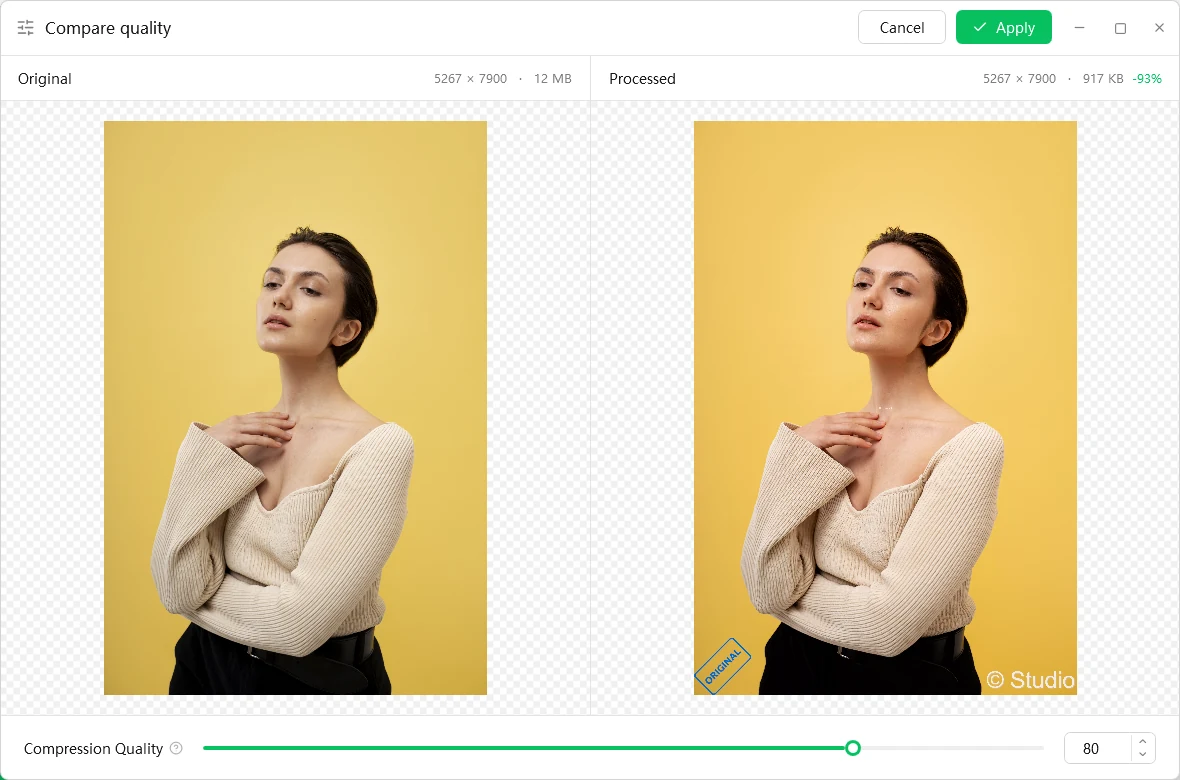
Compare quality

See the real compression result before you process

The original and the processed result sit side by side, with pixel dimensions, file size and the percentage change shown above each. The preview goes through exactly the same encoding path as the batch run, so you see the file that will actually be written, not an estimate. Drag the quality slider and it re-encodes on the spot.

Batch tools

Resizing, renaming and batch running all happen in the same pass as the watermark.

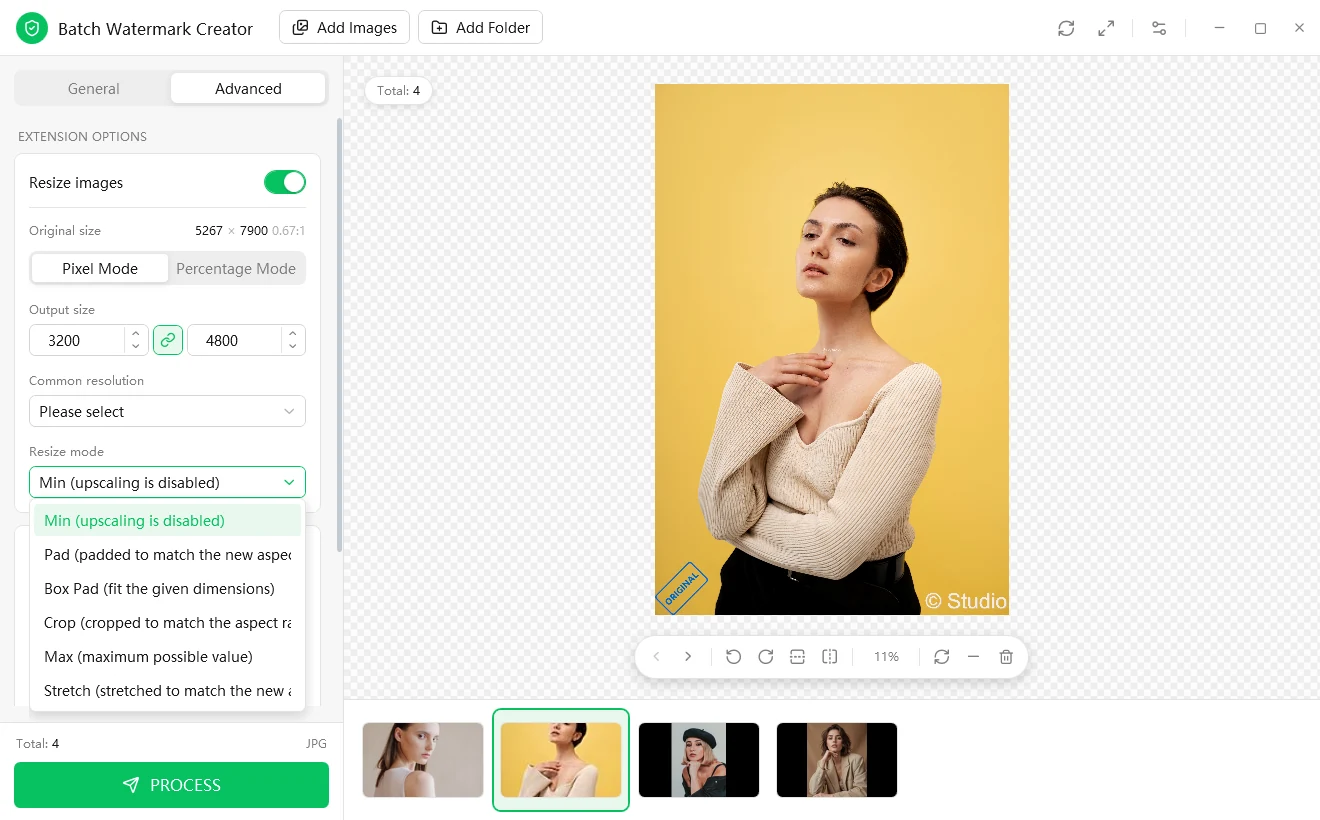
Resize images panel on the Advanced tab with Pixel Mode and Percentage Mode, and the list of six resize modes

Resize

Batch resize with six resize modes

Pixel mode takes a target width and height, or one of the common-resolution presets (avatar, thumbnail, web or email, and standard monitor sizes). Percentage mode scales proportionally. For most jobs, Min is the one to pick.

  • Min (recommended) ·Fits inside the target proportionally; no cropping, no distortion, never enlarges
  • Pad ·Scales to fit, then pads the remaining area to match the target aspect ratio
  • Box Pad ·Same idea within the given dimensions, without enlarging smaller images
  • Crop ·Scales proportionally, then trims the overflow so the target is filled exactly
  • Max ·Scales proportionally to the maximum size the target allows
  • Stretch ·Forces the exact target size and will distort the picture

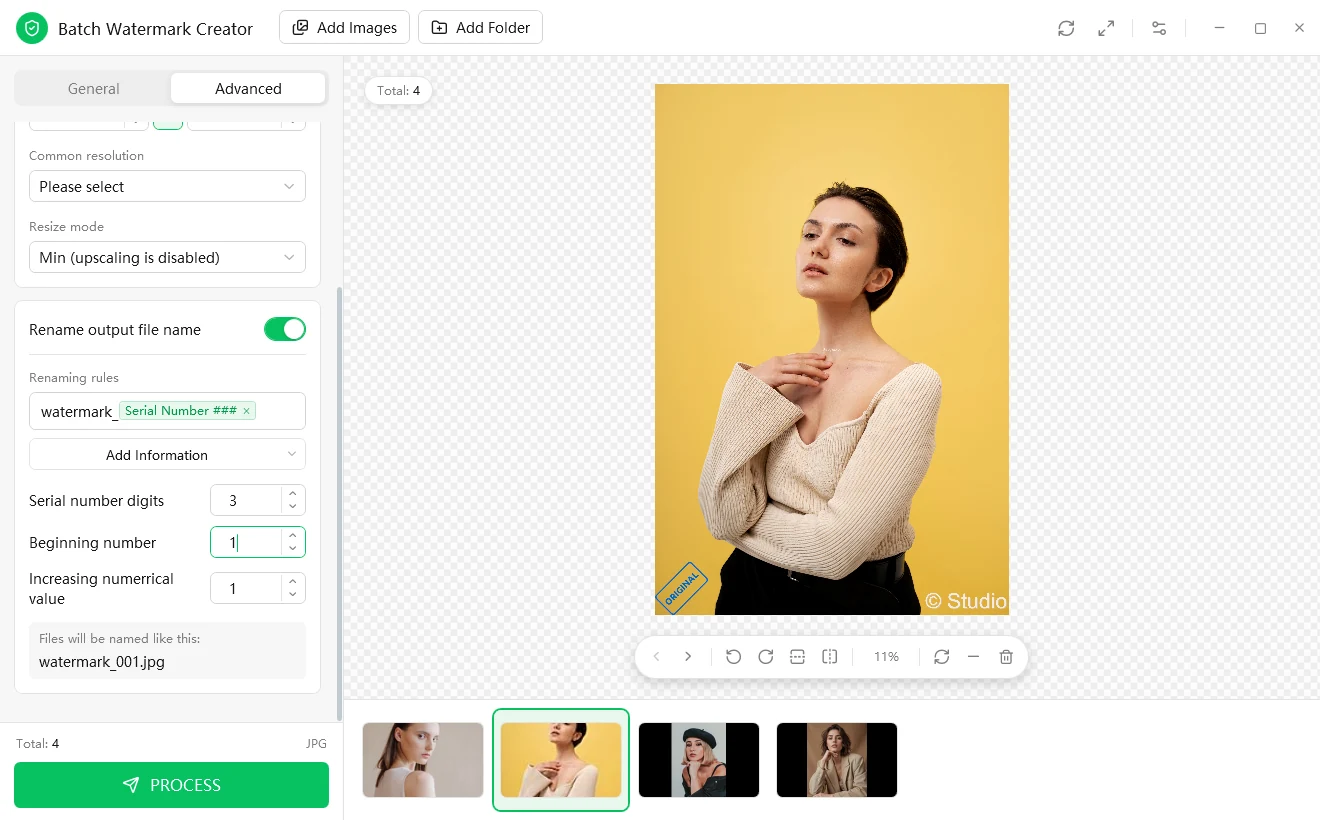
Rename

Rename the output files in the same run

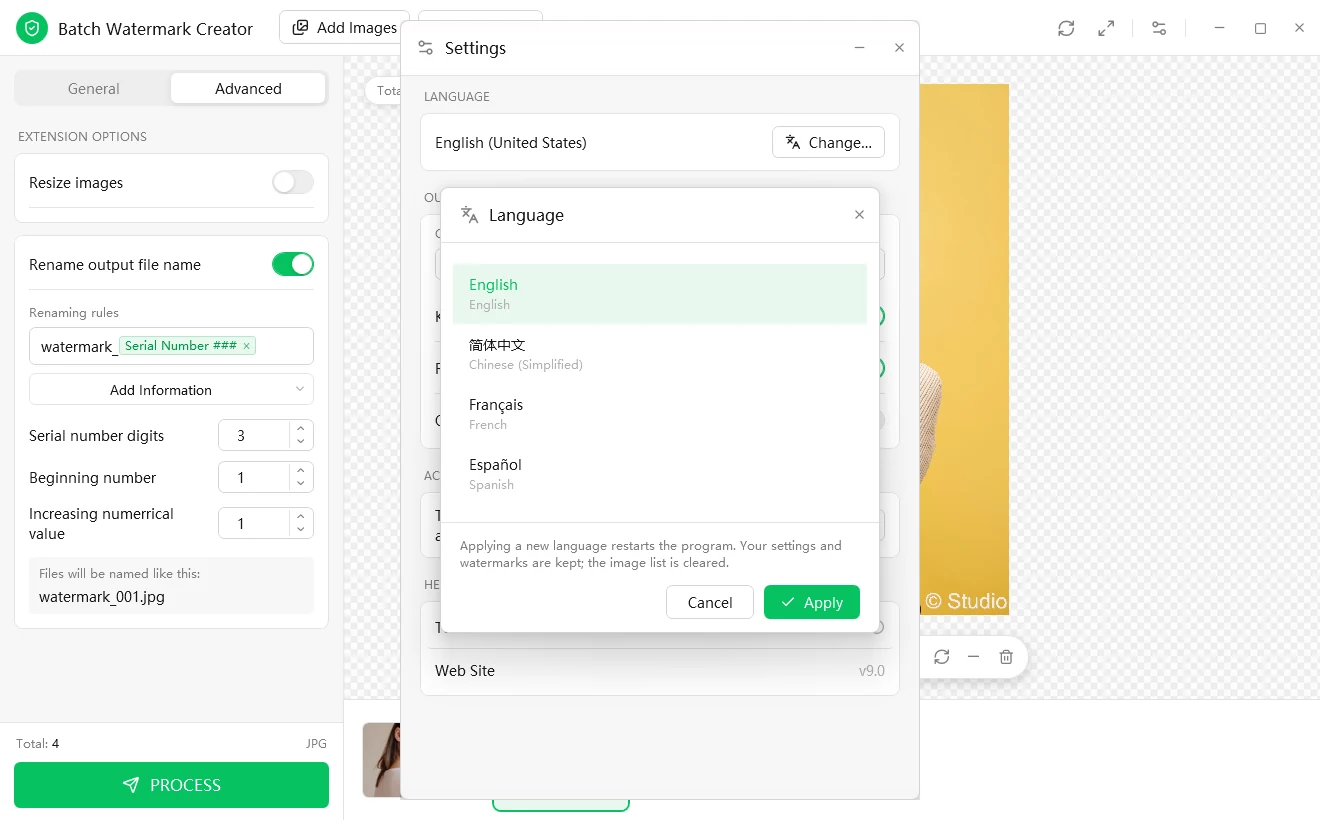
Build a rule such as "watermark_" followed by a serial number, using placeholders for the serial number, the original file name, the extension and dates. The beginning number, the number of digits and the step are adjustable, and the panel shows a sample of the resulting file name as you type. Resizing and renaming both live on the Advanced tab, and both run in the same pass as the watermark.

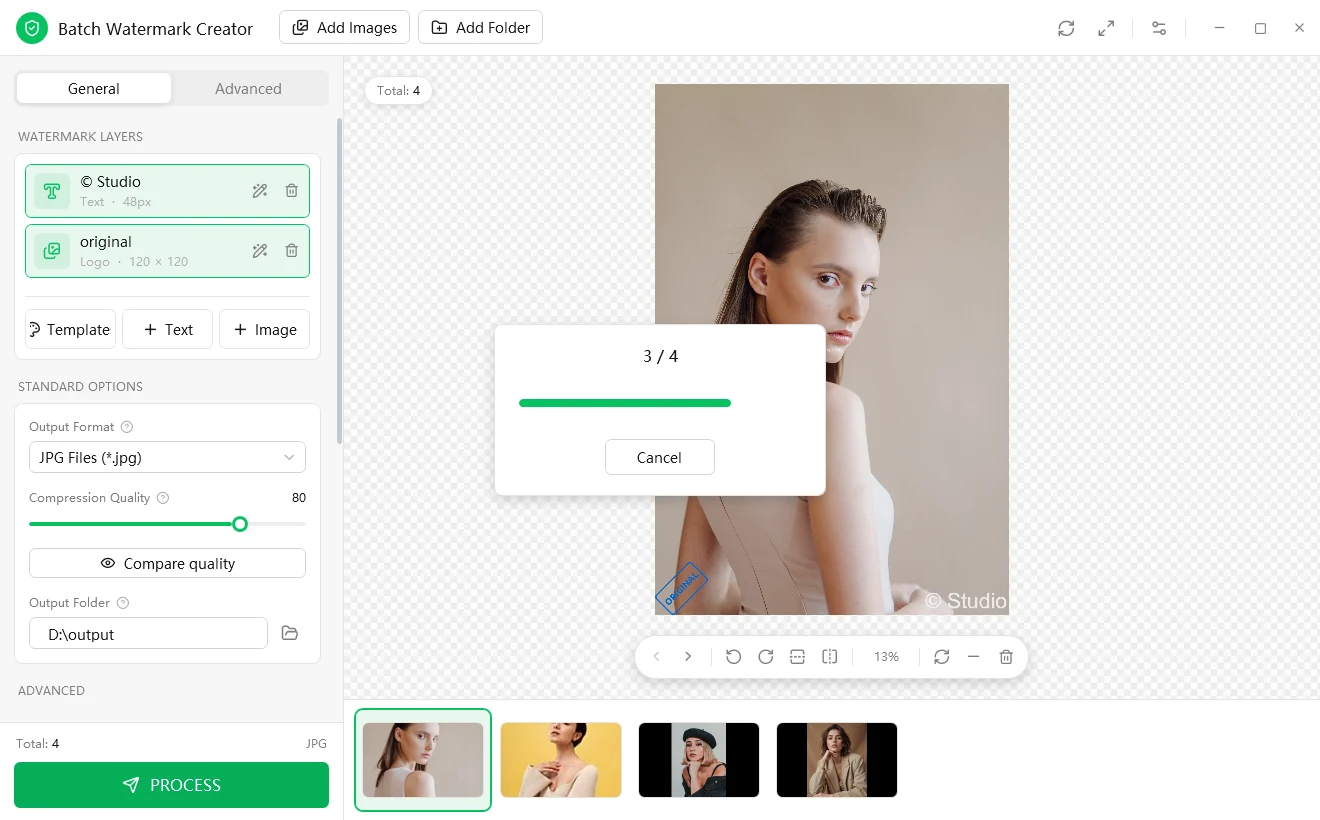
Progress dialog showing 3 of 4 images processed, with a Cancel button

Batch processing

The whole batch runs, even if one file fails

A progress dialog shows how far along the run is, and you can cancel at any time. One bad file does not stop the batch: it is skipped and counted as a failure, and the result message tells you how many succeeded. Every run is saved to Recent with its complete settings, so next time you can apply the same setup to a new folder in one click.

Languages

Four interface languages

English, Chinese, French and Spanish, switchable from inside the app. Changing the language restarts the program: your settings and watermarks are kept, and the list of added images is cleared.

Free trial

15-day free trial. Every feature works; exports carry a small "unregistered" mark until you activate.

License and activation

Activate with your name, email and license key. A lifetime license is a single payment; 1-year licenses are available too. Activation guide ›

System requirements

Windows 7, 8, 10 and 11 (32-bit and 64-bit), with a 64-bit and a 32-bit installer. Requires .NET Framework 4.5.2.

Android app

Free, no ads, no sign-up: one-tap templates, camera info and location watermarks, and batch export. About the Android app ›

Ready to try it?

Download the full program free, and buy a license when you are ready to keep it.